Overview
Build your own inspections, checklists, daily logs, work orders and data-collection forms without code. Crews fill them in on the web or on the DV Field phone app, with photos, signatures and voice. Managers see and export what was collected, and anyone can ask the Forms Assistant about it in plain words.
A form can also post work to Accounting: its Labor, Materials and Equipment sections become job cost on the project, priced there. That is how a crew's daily, a Field Work Order or a quick Post time reaches the project's numbers.
Fill inDraft
saves as you go -- Submit --> Submitted PostSubmitted→Labor, Materials, Equipment→Accounting
charged to the project and priced FixSubmittedReopen→Draft again
postings reversed -- Submit --> Posted again
- A draft saves itself a moment after each change. You can leave and come back.
- Submit checks the required fields, then locks the form.
- If the form has Labor, Materials or Equipment, they are posted to Accounting on submit, charged to the form's project. Crews never see the dollars.
- A form designer can Reopen a submitted form. What it posted is reversed until it is submitted again.
| Who |
What they do here |
| Crew leads and crews |
Fill in dailies, inspections and Field Work Orders; post time and materials from the phone |
| Office and managers |
See every submission, watch Due & missing, export to CSV |
| Form designers (administrators) |
Build, publish and schedule forms; choose the phone's quick tiles; reopen submissions |
| Place |
What's there |
| Left nav → Inspections & Forms → Forms |
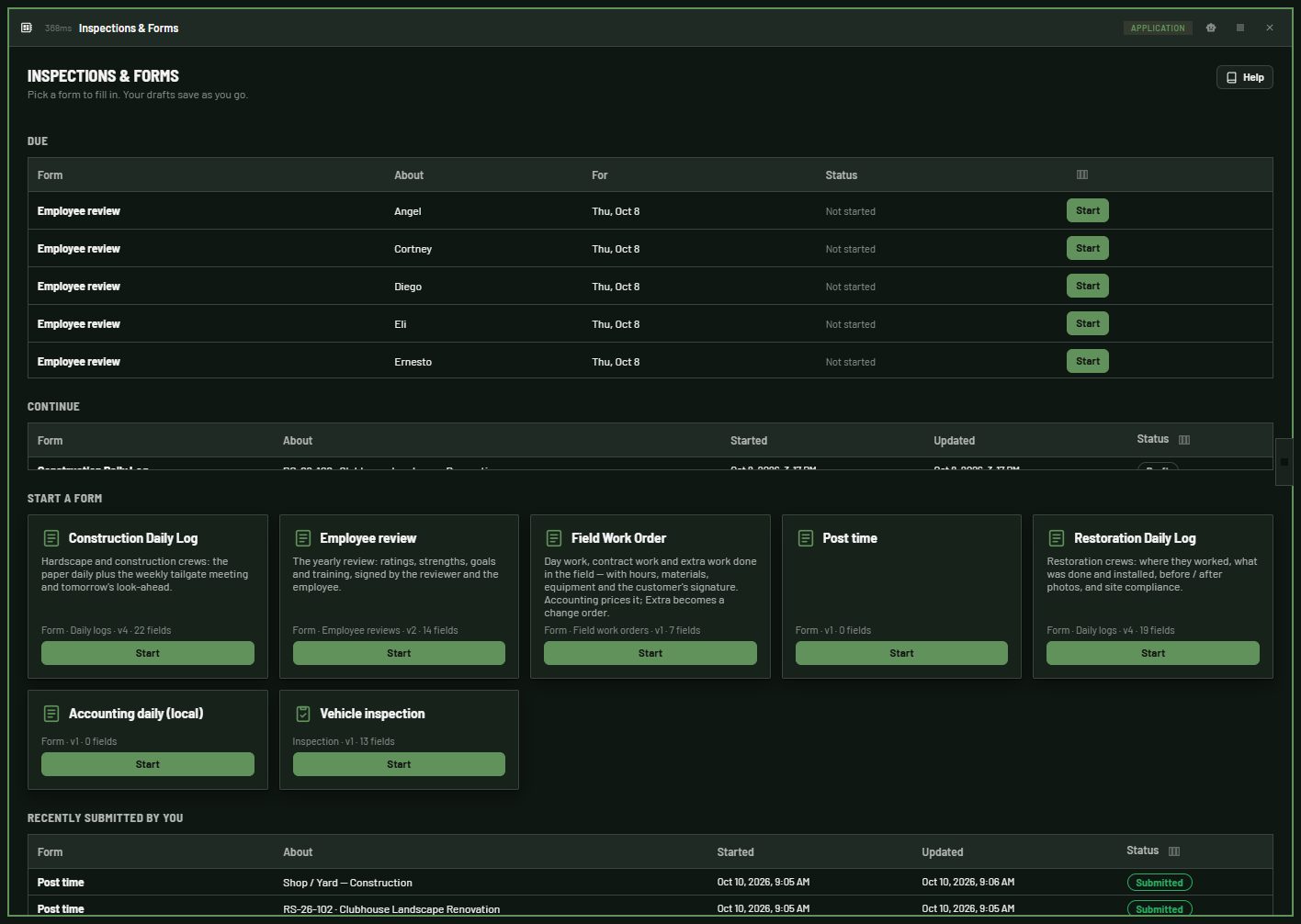
What is Due, your drafts to Continue, forms to Start, and what you submitted recently |
| Left nav → Inspections & Forms → Submissions |
Everything collected on every form, with a CSV export per form |
| Left nav → Inspections & Forms → Due & missing |
Everything scheduled in a date range: done, started, missing, overdue |
| Left nav → Inspections & Forms → Form builder |
Build, preview, publish, archive and schedule forms |
| Left nav → Inspections & Forms → Mobile app |
The DV Field download link, QR code and a message to send crews |
| The robot in the module header |
The Forms Assistant: ask what is due or missing, find and count submissions, start or fill a draft |
| Help (book button, top right of each page) |
These pages |
Which pages you see depends on your access: someone who only fills in forms sees Forms and Mobile app. See Who can do what.
Next: How-tos · Crew lead quick start · Reference · Ask the Forms Assistant
How-tos
Each how-to says who can do it. If a button is missing, you may not have that access; see Who can do what. For the phone, see the Crew lead quick start. To ask instead of clicking, see Ask the Forms Assistant.
Who can do this: anyone who fills in forms (Fill).
- Left nav → Inspections & Forms → Forms.
- Under Start a form, click Start on a form card. Type what it is about (optional, for example Truck 12), then Start.
- Fill it in. It saves itself a moment after each change (Unsaved changes…, then Saved … at the bottom).
- If the form has Labor, Materials or Equipment, pick what it is charged to on the card at the top. See Charge a form to a project or an internal account.
- Click Submit, then confirm.
Expected result: Submitted, and the form is read only. If something required is empty, the message names it (Not ready to submit: fill in Brakes, Safe to drive).
Who can do this: the person who started it (or a form designer).
- Left nav → Forms.
- Under Continue, click the draft.
- Fill in the rest and click Submit.
Expected result: it moves to Recently submitted by you. A draft started on the phone shows here too, and the other way round.
- Open the draft.
- Click Delete draft at the bottom, then confirm.
Expected result: the draft and its photos are gone. Only your own draft can be deleted; a form designer can also delete a submitted form.
Who can do this: anyone who fills in forms and has a scheduled form (as the project's crew lead, by role, or by name).
- Left nav → Forms. Due lists today's forms and any overdue ones.
- Click Start (not started), Continue (started) or View (done).
Expected result: the form is already about its record (for example the project) and for its date. A daily starts with the previous one's crew and any section the designer marked to copy. If someone already started it, theirs opens instead of a second copy.
- On a Signature field, draw the signature with a finger, pen or mouse.
- Type the name of the person signing.
- Clear starts over.
Expected result: after submit, the form shows Signed by … with the time. Submit refuses a signature with a drawing and no name (Signature: name of the person signing), or a name with no drawing (… still needs to sign).
- On a Photos field, click Add photos and pick one or more pictures (on a phone browser, the camera opens).
- Type a description under each photo if you like.
- Remove takes one off (drafts only).
Expected result: the photos show under the field. Each field takes at most the number the designer set (10 unless changed). A required photo field needs at least one photo to submit.
Who can do this: anyone filling in a draft. Needs your company's AI key.
- Click the mic on a section's header (on the phone, hold it and talk).
- A box opens: click Talk and speak, or type what was done. Then click Fill section.
- Check the highlighted fields (AI filled — review). Undo puts the section back.
Expected result: only that section changes, checked by the same rules as typing. Anything that fits no field is shown as Not placed. Which AI model reads it is a setting; see Choose the AI model for voice fill.
A form with Labor, Materials or Equipment is charged to something: a project (job cost, billed by its rules) or, when the form allows it, an internal account: overhead by department, like Shop / Yard — Construction or Training — Landscape (cost only, never billed).
Who can do this: anyone who fills in forms.
- Open the form (start it from Forms, or Continue a draft).
- At the top, the Project card (or Charged to, when the form allows both) shows a red * while nothing is picked.
- Pick the tab, Projects or Internal accounts. Then search, or click one of your recent picks at the top of the list (marked Recent).
- To change it on a draft, click Change on the card.
Expected result: the card shows what it is charged to (for example Shop / Yard — Construction, Internal account), saved at once. Submitting posts the hours and materials there.
- A form started from Due is already about its project. The card is read only (Set by the schedule this form was started from).
- Submitted forms are read only. A form designer reopens one to change what it is charged to.
- Submitting with nothing picked turns the card red: Labor and materials are charged to a project. Choose it at the top of the form, then Submit.
- Only projects you can see are listed (a crew lead sees their crews' projects). Only the kinds the form allows can be picked.
- Your recent picks are remembered in this browser, per form.
Who can do this: form designers (Design).
- Open the submission (from Submissions, Due & missing, or the project's Dailies & forms).
- Click Reopen for changes and confirm.
- Make the change and Submit again.
Expected result: the form is a draft again (Reopened … · name). Labor, materials and equipment it posted are reversed in Accounting, and posted again on the new submit.
Who can do this: form designers.
- Left nav → Form builder → New form.
- Type a Name, pick the Kind (Inspection, Form or Survey), and Start from A blank form (or A copy of another form) → Build it.
- From the toolbox on the right, drag a row onto the form, a Section into a column, and fields into the section.
- Click any item to edit it in Properties (label, required, help text, choices).
- Click Preview to see it as the person filling it in will.
- Click Publish, then confirm.
Expected result: Published v1. The form shows on Forms for everyone who fills in forms. Save draft keeps your changes without publishing.
Charged to. When the form has a Labor, Materials or Equipment section, a Charged to: line shows under the details: tick Projects, Internal accounts, or both (one must stay ticked). New forms, and forms from before this option, are charged to projects only. Tick Internal accounts for forms crews use for shop, yard, training or drive time; Accounting's administrator sets those accounts up (Accounting → Module Settings → Configuration → Internal accounts). Publish again for the change to reach new submissions.
Who can do this: form designers.
- In the builder, drag Lookup into a section, then pick what it Looks up in Properties (for example an employee from your employee list, a project, a customer).
- For repeating rows, drag Table, then Add column for each column: a label, a type (text, number, currency, single choice, yes / no, date, time or lookup), Req. if it must be filled, the choices (comma separated) or what a lookup column looks up.
- Preview to try it.
Expected result: the person filling it in searches the other module's records and picks one; a table gets Add row. See Lookups and tables.
Set up quick posting forms (Post time, Post materials)
Crew leads post time and materials fastest with small forms that hold one table. Build each once.
Who can do this: form designers.
- Form builder → New form. Name it Post time → Build it.
- Drag a one-column row onto the form.
- From Standard sections, drag Labor into it. (For Post materials, drag Materials. For Post time & materials, drag both, plus Equipment if you like.)
- Optional: add a Long text for notes.
- Tick Quick action on the phone, then tick the roles under For: (for example Crew Lead). None ticked means everyone who fills in forms.
- Click Publish.
Expected result: a Post time tile on DV Field's Quick row. A form with just one table opens straight on it, after the crew lead picks the project.
Who can do this: form designers. The form must be published first.
- Form builder → the form → Schedules → Add schedule.
- About: Every record of… a record source (optionally Only where a field equals a value, for example department = CONSTRUCTION), One record of… (Truck 12), or Nothing in particular.
- How often: every workday, every day, weekly on a day, monthly on a date (1–28), every N days, or when needed (never due).
- Who does it: the record's lead (a project's crew lead), everyone with a role, or a named person.
- Set Due within (days), Starting (blank = today) and Status (Active or Paused), then Save schedule.
Expected result: it shows under Due on the Forms page and on the phone, and in Due & missing. A new schedule owes nothing for the days before it starts. Deleting a schedule keeps everything already filled in.
Who can do this: office and managers (View all).
- Left nav → Due & missing.
- Pick From and To (up to 93 days, ending today at the latest), and a form if you like.
- Tick Show done to list completed ones too.
Expected result: each scheduled item as Done, Started, Missing or Overdue, with a card per form showing its completion (12 of 14 done). Click a started or done row to open it. A project whose crew has no lead with a login shows no lead: nobody is reminded.
Who can do this: office and managers (View all).
- Left nav → Submissions.
- Pick a form and a status (Submitted or Draft) to narrow the list.
- Click a row to open it.
Expected result: each submission with its form, version, what it is about, who prepared it, when it was submitted, and its status.
Who can do this: office and managers (View all).
- Left nav → Submissions.
- Pick the form. To leave drafts out, pick Submitted.
- Click Export CSV.
Expected result: a spreadsheet of the rows listed, one row per submission: Submitted, Status, Version, About, Prepared by, then one column per field (fields from every version). Photos show as a count (2 photo(s)); tables, lookups and signatures as text.
Who can do this: everyone, on every table in the module (Submissions, Due & missing, the Forms page, the form builder list, Schedules).
- Click the Columns button at the right end of the table's header row.
- Untick a column to hide it; use ↑ and ↓ to move one. Reset puts the table back. Click Done.
- On a computer you can also drag a column header to a new place.
Expected result: the table keeps your layout every time, on every device you sign in on. It is yours only; nobody else's table changes.
Who can do this: administrators (or anyone with Inspections & Forms → Module Settings).
- In the sidebar, click the ⋮ next to Inspections & Forms → Module Settings → Preferences.
- Set ai_model. The default is claude-haiku-5-5 (fastest). A Sonnet model reads hard dictation better but takes longer.
- Save.
Expected result: the next section mic uses that model. Other settings there are listed in Module settings.
Who can do this: anyone who can open Mobile app (usually the office).
- Left nav → Mobile app.
- Click Copy message (or Email it) and send it to your crew leads. Or show them the QR code, or Copy link.
Expected result: they install DV Field and sign in with their work email and password. The page shows the current version (DV Field 0.10.4). See Install or update the app.
Who can do this: the owner or office manager.
CrewsDailiesInspectionsWork orders→Submissions→Office dashboardManagement dashboard
- Left nav → Accounting, then click Build dashboards (top right).
- Open Dashboards in the sidebar and pick Office or Management.
Expected result: Office → Today & this week shows forms submitted this week, by day for the last 14 days, and which forms replace the most paper. Management → Crews & overhead shows forms submitted by month. Each submitted form is a paper sheet nobody had to collect, read or retype.
The Form submissions dataset (needs View all) has the form, its kind and category, draft or submitted, who submitted it and when, what it was charged to (and whether that is a project or an internal account), and how many photos it has. You, or the Dashboard agent, can chart more from it.
Who can do this: anyone who can open Inspections & Forms. It can do only what you can do.
- Open Inspections & Forms, then click the robot (Open Agent Chat) in the module's header.
- Ask in plain words, for example:
- What forms are due today? or Which dailies are missing this week, by crew lead?
- How many forms did we submit each day the last two weeks?
- Show me last Friday's vehicle inspections where Brakes failed.
- Start a Post time for Hillside Ave and add Juan, 8 hours.
- How do I charge a form to Shop / Yard?
- Before it submits or reopens a form, or saves a schedule, it tells you what will happen and waits for your yes.
Expected result: answers come from your data and these help pages; how-to answers say where in Help they came from. A crew lead sees only their own forms and their crews' projects. Ask what can I do here? to hear your permissions.
Crew lead quick start
Everything a crew lead does on the phone: what is due, your dailies, posting time and materials, Field Work Orders and signatures. Written for DV Field 0.10.4 (Android).
- Ask the office for the link, or scan the QR code on their Mobile app page.
- Open the link on your Android phone and download the app.
- Allow installs from this source when the phone asks, then tap Install.
- Open DV Field and sign in with your work email and password.
Updates: when a new version is out, Today shows Update available — 0.10.4 (You have 0.10.3. Tap Update, then Install.). Tap Update, wait for the download, then tap Install when Android asks. The cloud icon at the top of Today checks by hand: Up to date — version 0.10.4 means nothing to do. Your drafts stay on the server, so updating loses nothing.
iPhone: coming through Apple TestFlight.
TodayQuick
your tiles -> Due
- Quick: the office's tiles for you (for example Post time, Post materials, Field Work Order) and any form you pinned.
- Due: tap it for the list (Overdue, Today, Upcoming). Hold it for the next few. Red means something is overdue.
- Finish: forms you saved as a draft. Tap one to keep going.
- All forms: every form. Tap ★ to pin one to Quick (tap again to unpin).
- Pull down to refresh. The icons at the top: calendar (Daily reports) and briefcase (Jobs and photos) when your company has those, cloud (check for updates) and sign out.
A form with Labor, Materials or Equipment asks first.
- Which project? (or What is this charged to? when the form also allows internal accounts).
- If there are tabs, pick Projects or Internal accounts (shop / yard, training, drive time…).
- Tap one under Recent, or search.
Expected result: the card at the top of the form shows it, with Project or Internal account. Tap Change on the card to move a draft. Hours on an internal account are cost only; they are never billed.
Post your crew's time
- On Today, tap Post time (under Quick).
- Pick the project (see Pick what a form is charged to). Your recent projects are at the top; search for others.
- On a new day, tap Same crew as last time to copy last time's people and hours. Or tap Add people, tick everyone who worked, and tap Next: hours for N people.
- Tap an hours chip (4 h, 6 h, 8 h, 10 h) and any OT or DT, then Add N people.
- To change one person, tap their line, fix the hours, and tap Save. Remove anyone who wasn't there.
- Check the total at the top (for example 5 people · 40 h · 2 h OT).
- Tap Submit, then Submit again to confirm.
Expected result: Submitted. The hours are charged to the project. You never see rates or dollars.
Adding one person at a time: tap + Add labor, pick the person, tap the hours, then Save & add another. The hours stay for the next person.
Post materials
- On Today, tap Post materials.
- Pick the project.
- Tap + Add material (the item list opens by itself).
- Pick the Material from the list. Not on the list? Type it.
- Type the Qty. The Unit fills itself in. Pick the Supplier.
- Tap Save & add another for the next item, or Save for the last one.
- Tap Submit.
Expected result: the materials are charged to the project and priced by the office.
- Tap Due and Start today's daily for your project (or Continue if you started it).
- The overview lists the sections. Tap the first one.
- Fill it in, then tap Next to go to the next section, or Done to go back to the overview.
- A section shows Done ✓ when it is complete, or Needs: N required in red.
- Labor starts with your crew from the last daily: check the hours.
- To stop for now, tap Save draft. It waits under Finish on Today.
- When the day is done, tap Submit.
Expected result: Submitted — read only. Need a change after that? Ask an office admin to reopen it.
- In a section, hold the mic at the top. Listening shows.
- Say what was done, for example "poured the east footing, inspector signed off, rain in the afternoon".
- Let go. The app fills the section's fields and marks them.
- Check them. Undo puts the section back.
A plain tap on the mic tells you to hold it, and offers Type it instead. Long text boxes have their own small mic too.
- On Today, tap Field Work Order.
- Pick the project.
- Work order: pick the Type of work: Day Work (bills at T&M rates), Contract (inside the contract) or Extra (outside it; becomes a change order). Describe the Work performed and who ordered it.
- Add Labor, Materials and Equipment.
- Tap Take photos to photograph the work. Describe each photo, or Skip.
- Customer sign-off: hand the phone over. The customer signs in the box with a finger and types their name. Clear starts over.
- Tap Submit.
Expected result: the office sees it on the project's Dailies & forms. Extra work goes to the estimator as a change order.
- No signal? Forms need a connection to save. If saving fails, the line at the bottom turns red (Not saved — tap for details); stay on the form and tap Save draft again when you have signal.
- Saved? The line at the bottom says Draft saved … ✓.
- Can't find your project? Only your crews' projects are listed. Ask the office to add your crew to it.
- Wrong project on a draft? On the overview, tap Change on the Project (or Charged to) card. Not on a form that came from Due: that one is fixed to its project.
- Submitted with a mistake? Ask an office admin to reopen it; you fix it and submit again.
- Questions? On the web, the Forms Assistant answers from this help and your forms. See Ask the Forms Assistant.
- Sign out: the sign-out icon (an arrow leaving a box) at the top of Today.
Reference
The builder has the form on the left and a toolbox on the right. Everything can be dragged:
- Rows. Drag a row layout onto the form: one column, two columns, wide + narrow, narrow + wide or three columns. On a phone a row's columns stack.
- Sections. Drag Section into a column. A section has a title (and an optional description) and holds fields.
- Fields. Drag a field type into a section. Dropping a field straight into an empty column makes a section for it.
- Reorder by dragging rows (by their bar), sections and fields, even into another section or column. Or click an item and use ↑ ↓ in its properties.
- Click anything to edit it in Properties: label, required, help text, placeholder, choices (one per line), min / max, stars, most photos. Duplicate or remove it there too.
- Preview shows the form exactly as the person filling it in will see it.
| Group |
Types |
| Text |
Short text · Long text (with voice dictation) · Email · Phone |
| Numbers |
Number (with min / max) · Currency · Rating (3–10 stars) |
| Choices |
Single choice · Multiple choice · Yes / No · Pass / Fail / N/A |
| Date & time |
Date · Time · Date & time |
| Media & place |
Photos (several, each with a description) · GPS location |
| Display |
Instructions (text shown on the form; no answer) |
| Sign-off |
Signature: the signer draws on the screen and types their name; kept with the time it was signed |
| Data |
Lookup: pick a record from another module (an employee, project, customer, subcontractor, crew…). Table: repeating rows of fields |
A form can have up to 40 rows (1–3 columns each), 80 sections and 300 fields; a choice field up to 100 choices; a table up to 20 columns and 200 rows.
- Lookup searches records another module offers (its record sources): employees and crews, projects, customers, the Price Book's products… The answer keeps the record's name and id, so reports can follow it back. Only records you may see are offered (a crew lead sees their crews' projects).
- Table holds repeating rows. Its columns can be short text, number, currency, single choice, yes / no, date, time or lookup, each optionally required. Submit names a row's missing column (Labor row 2: Hours).
- Typed entries. Some lookups accept a name that is not on the list (temp labor, an odd material): pick Use "…" (not on the list). It is kept as typed. The standard sections and ready-made forms set this up; the builder does not.
- Filled columns. A column can fill itself from the record picked in another column (the Labor role from the employee, the Unit from the material). Also set by the standard sections.
Accounting offers whole sections a form can carry. They are in the toolbox under Standard sections:
| Section |
Columns |
| Labor |
Employee (from HR, or typed for temp labor), Labor role (fills from the employee), Hours, OT hours, DT hours |
| Materials |
Material (a Price Book item, or typed), Qty, Unit (fills from the item), Supplier (a Price Book vendor, or typed) |
| Equipment |
Equipment (a Price Book rental or operated machine, or typed), Owned / rented, Rented from, Hours, Days / qty |
Without the Price Book module, Materials and Equipment are typed text.
- On submit their rows are posted to Accounting as job cost, charged to the form's project, for the form's date, and priced there from the rate sheets and the Price Book. If Accounting can't take them, the form isn't submitted (try again).
- Nobody sees dollars on the form. Crews pick by name; prices stay with people who may see costs.
- A typed item (not on the list) is posted too; the office adds its cost in Accounting.
- Reopening a submitted form reverses what it posted, until it is submitted again.
- Forms filled before the Price Book pickers keep what was typed: the old text shows as a typed entry.
A form with Labor, Materials or Equipment is charged to a project, or — when the form designer ticked Internal accounts under Charged to — to one of Accounting's internal accounts (overhead by department: Shop / Yard — Construction, Drive time — Maintenance…). Accounting's administrator keeps the list (Accounting → Module Settings → Configuration → Internal accounts).
- Projects are job cost: billed by the project's rules (T&M, contract, extra).
- Internal accounts are overhead: cost only. Never billable, never on an invoice, and reported apart from project work in Accounting (Projects → Internal accounts). Each maps to a QuickBooks account.
- From Due: a scheduled form is already about its project. It can't be moved to another one.
- On the phone: DV Field asks what it is charged to first, with your recent picks on top. Change on the card moves a draft.
- On the web: the card at the top of the form picks it — tabs for Projects and Internal accounts (when allowed), search, recent picks first. See Charge a form to a project or an internal account.
- Only what the form allows can be picked; anything else is refused.
- Submitting without one says: Labor and materials are charged to a project or internal account. Choose it at the top of the form, then Submit. (just a project when the form allows only projects). Pick one, then submit.
- Picking something the form doesn't allow is refused: This form is charged to projects only — pick one of those.
- Which record source counts as the projects is the charge_source setting (empty: the first module offering projects). See Module settings.
Quick posting forms
A form that holds just one table (for example only Labor), plus optional notes, is a single-purpose form. On the phone it opens straight on its table after the project is picked, with Add people, Same crew as last time, hour chips and Save & add another. Your office builds them; see Set up quick posting forms.
A form has a draft you edit freely and numbered published versions. Publish turns the draft into the next version. New submissions use it; every earlier submission keeps the version it was filled on, so changing a form never changes what was already collected. Archive stops new submissions without touching the data; Restore brings it back. A form nobody has filled in can be deleted.
- A form saves itself 1–2 seconds after each change (Unsaved changes…, then Saved …). Leaving with unsaved changes warns you.
- Submit checks the required fields. A required photo field needs at least one photo; a table row names its missing column (Labor row 2: Hours). A value that doesn't fit its field is refused with the field's name ("Odometer" must be at least 0), never dropped.
- A submitted form is read only. A form designer can Reopen for changes.
- Print / PDF uses the browser's print dialog.
- Delete draft removes a draft you started, with its photos. A form designer can delete a submitted one.
- A form started from Due is about its record and date. Starting the same one again opens the one already started.
The signer draws with a finger, pen or mouse and types their name. A draft keeps a drawing without a name, so nothing is lost while you hand the phone over. To submit, a required signature needs both. A signature that can't be read asks to be cleared and signed again.
Field Work Order (a ready-made form on the phone's Quick tiles): Type of work (Day Work, Contract or Extra), Work performed, Ordered by (customer's representative), Customer order / CO #, then Labor, Materials and Equipment, Photos of the work, and the Customer signature with title / company. Accounting marks its lines with the type of work: Day Work bills at T&M rates, Contract is cost only, and Extra becomes a change order on the project.
Employee review (a ready-made form): ratings, strengths, areas to improve, goals and training, a recommendation, and the employee's and reviewer's signatures. It is scheduled once a year on every active employee, due from the Admin role. Each review is listed on the employee's page in HR (Reviews & forms).
A published form can be scheduled (Form builder → the form → Schedules → Add schedule):
- About: every record of a source (optionally only where a field equals a value: every project where department = CONSTRUCTION), one record (Truck 12), or nothing in particular.
- How often: every workday, every day, weekly on a day, monthly on a date, every N days, or when needed.
- Who does it: the record's lead (a project's crew lead), everyone with a role, or a named person.
- Due within N days, and from which date (default: today).
Starting a due form makes it about its record, for its date, and starts with the previous one's Labor crew and any section the designer marked Start each new one with the previous one's answers (weather, equipment, subs). One per record per date.
Daily logs are forms. The Construction, Restoration and Maintenance Daily Logs are forms scheduled on their department's projects every workday; their Manpower is Accounting's Labor section.
Every section has a mic on its header. Click it (hold it, on the phone), click Talk and say what was done, or type it, and Fill section. The AI fills only that section's fields, highlighted, with "AI filled — review" and an Undo. Every value goes through the same rules as typing it, and you always review before Submit. Anything said that fits no field is shown as Not placed. The AI uses your company's AI provider (AI Providers in the sidebar, administrators only) and the model in the ai_model setting (default claude-haiku-5-5; see Module settings).
- Today: Quick tiles, Due (tap for the list, hold for the next few), Finish (your drafts), All forms (★ pins one to Quick).
- Charged to first: a form with Labor, Materials or Equipment asks Which project? (or What is this charged to?, with Projects and Internal accounts tabs), recent picks on top.
- Updates: Update available on Today, Update then Install; the cloud icon checks by hand.
- Section by section: the overview lists each section with its status (Not started, In progress, Done ✓, Needs: N required). Next and Done move between them.
- Save draft keeps it under Finish; Submit locks it.
- Project picker, Add people, Same crew as last time, hour chips (4 / 6 / 8 / 10 h), Save & add another and running totals for posting time and materials.
- Photos straight into a photo field, hold-to-talk on every section, signatures with a finger.
The step-by-step guide is the Crew lead quick start.
Quick tiles. In the Form builder, tick Quick action on the phone and pick the roles that get it (none ticked = everyone who fills in forms). Everyone can also pin any form for themselves.
Submissions (needs View all) lists everything collected: form, version, about, prepared by, submitted, status. Filter by form and by status. Export CSV (pick a form first) exports the rows listed: Submitted, Status, Version, About, Prepared by, then one column per field from every version. Photos export as a count; lookups, tables and signatures as text.
On submit, every answer is also stored one row per value (a multiple choice is a row per option, a table a row per cell), so reports can filter on any field (every vehicle inspection where Brakes = Fail this month).
Someone with only Fill sees their own submissions (on Forms), not the Submissions page.
The Form submissions dataset (needs View all) feeds the Office and Management dashboards. One row per form filled in.
| Dimension |
Meaning |
| form, form_kind, category |
Which form; form / inspection / survey; its category |
| status |
draft / submitted |
| submitted_by |
Who submitted it |
| charged_to, charge_type |
The project or internal account; Project, Internal account, Not charged |
| submitted_date, recent_day, submitted_week, submitted_month |
When (recent_day folds older ones into the first of the last 14 days) |
Metrics: submitted, drafts, submitted_today, submitted_this_week, submitted_last_14_days, photos, people (different people submitting), charged_to_work. See See forms on a dashboard.
Every list table in the module has a Columns button at the right end of its header row: hide, show and reorder columns, or Reset. On a computer, drag a header. The layout is saved for you on every device and changes nobody else's. See Arrange a table's columns.
Administrators (or anyone with Inspections & Forms → Module Settings) set these: sidebar ⋮ next to Inspections & Forms → Module Settings → Preferences.
| Setting |
Default |
What it does |
| charge_source |
empty |
The record source forms are charged to as projects (MODULE.source). Empty: the first module offering a project source |
| ai_model |
claude-haiku-5-5 |
The model the section mic uses. Haiku is fastest; a Sonnet model reads harder dictation better but takes longer |
| workdays |
Mon,Tue,Wed,Thu,Fri |
The days an Every workday schedule is due |
| timezone |
America/Los_Angeles |
The crews' time zone: what today is for Due and missing |
| overdue_days |
14 |
How many days back Due shows overdue forms |
The robot (Open Agent Chat) in the module header opens the Forms Assistant. It has exactly your permissions and uses the same rules as the screens.
| It can |
Needs |
| List forms and show a form's sections and fields |
Any Inspections & Forms access |
| Find and read submissions (your own, or all with View all): answers, photos and signatures by name |
Any access |
| What is due for you today and overdue |
Fill |
| What is missing or overdue by project, crew lead or form; counts by day, week, month, form or person; a form's answer summary |
View all |
| Look up records for a lookup field, and the projects or internal accounts a form can be charged to |
Any access |
| Start a draft, fill in or change a draft's answers, pick what it is charged to |
Fill |
| Submit a draft (after you say yes) |
Fill |
| Reopen a submitted form (after you say yes) |
Design |
| See schedules |
View all or Design |
| Add or change a schedule (after you say yes) |
Design |
It answers how-to questions from these help pages and says where the answer is (for example Inspections & Forms → Help → How-tos → Charge a form to a project or an internal account). It never makes up forms, numbers or names.
Other modules use the same form builder and rules through the platform, so every form on the platform is checked the same way: Accounting's Labor, Materials and Equipment sections, a project module's project pages (its dailies and forms), HR's Reviews & forms. Planned: looking up a record by barcode scan.
Who can do what
Your administrator decides what each role can do (System Settings → Users & Roles). A typical setup:
| Role |
Can |
| Crew lead / crew |
Fill in published forms and see their own submissions. Post time and materials. Never see dollars |
| Office / managers |
Fill in forms, see and export every submission, watch Due & missing |
| Form designer (administrator) |
Build, publish, archive and schedule forms; pick the phone's quick tiles; reopen or delete any submission |
Out of the box, Admin and Operator fill in forms; Admin, Operator and Viewer see every submission; only Admin designs forms and reopens submissions.
Seeing a submission's labor or materials does not show dollars. Those need Accounting's View costs.
The Forms Assistant has exactly your permissions: it can't show, start, submit or reopen anything you couldn't on the screens. Ask it what can I do here? to hear your permissions. See The Forms Assistant.
What each page needs
| Page |
Shown with |
| Forms |
Fill or View all |
| Submissions |
View all |
| Due & missing |
View all |
| Mobile app |
Fill or View all |
| Form builder |
Design |
| Module Settings |
Manage settings (administrators) |
| Code |
Plain words |
Default roles |
INSPECTIONS_FORMS.FILL |
Fill in published forms; see your own submissions |
Admin, Operator |
INSPECTIONS_FORMS.VIEW_ALL |
See and export every submission; Due & missing |
Admin, Operator, Viewer |
INSPECTIONS_FORMS.DESIGN |
Build, publish and archive forms; reopen or delete submissions |
Admin |
INSPECTIONS_FORMS.MANAGE_SETTINGS |
Open Module Settings for Inspections & Forms (charge source, AI model, workdays, time zone, overdue days) |
Admin |
Questions
Ask a form designer (an administrator) to reopen it. They click Reopen for changes; you fix it and Submit again. Anything it posted to Accounting is reversed and posted again.
The form has Labor, Materials or Equipment but nothing is picked to charge it to. On the web, pick it on the red card at the top of the form. On the phone, tap Choose on the Project (or Charged to) card. See Charge a form to a project or an internal account.
Pick Internal accounts on the charge card. If there is no such tab, the form allows projects only: a form designer ticks Internal accounts under Charged to: in the Form builder and publishes again.
You only see projects your crew is assigned to. Ask the office to add your crew to the project.
Why can't I see the Submissions page?
It needs View all. With only Fill, your own drafts and submissions are on Forms (Continue and Recently submitted by you).
Type it and pick Use "…" (not on the list). It is posted as typed, and the office sorts out the cost.
On purpose. Crews pick by name; Accounting prices the lines for people who may see costs.
Yes. A scheduled daily starts with the previous one's Labor crew (and any section marked to copy). Change the hours and remove anyone who isn't there.
You didn't: starting it again opens the one already started.
Forms need a connection to save. Stay on the form and tap Save draft again when you have signal.
Its crew has no lead with a login (no lead). Ask HR to link the crew lead to a login.
Your company has no AI provider key. An administrator adds it under AI Providers in the sidebar.
An administrator can change the ai_model setting: Haiku is fastest, a Sonnet model reads hard dictation better. See Choose the AI model for voice fill.
Export CSV exports the rows listed. Pick Submitted in the status box first.
Click Columns at the right end of the table's header row, or drag a header. It is saved for you only. See Arrange a table's columns.
DV Field 0.10.4. Today shows Update available when a newer one is out; the cloud icon checks by hand. See Install or update the app.
Yes, if you can submit it yourself, and only after it shows you what will be submitted and you say yes. It can start and fill drafts, find and count submissions, and say what is due or missing. See Ask the Forms Assistant.