How-tos
Each how-to says who can do it. If a button or page is missing, you may not have that access; see Who can do what. You can also ask the HR Assistant (see Ask the HR Assistant below).
Requests and new hires
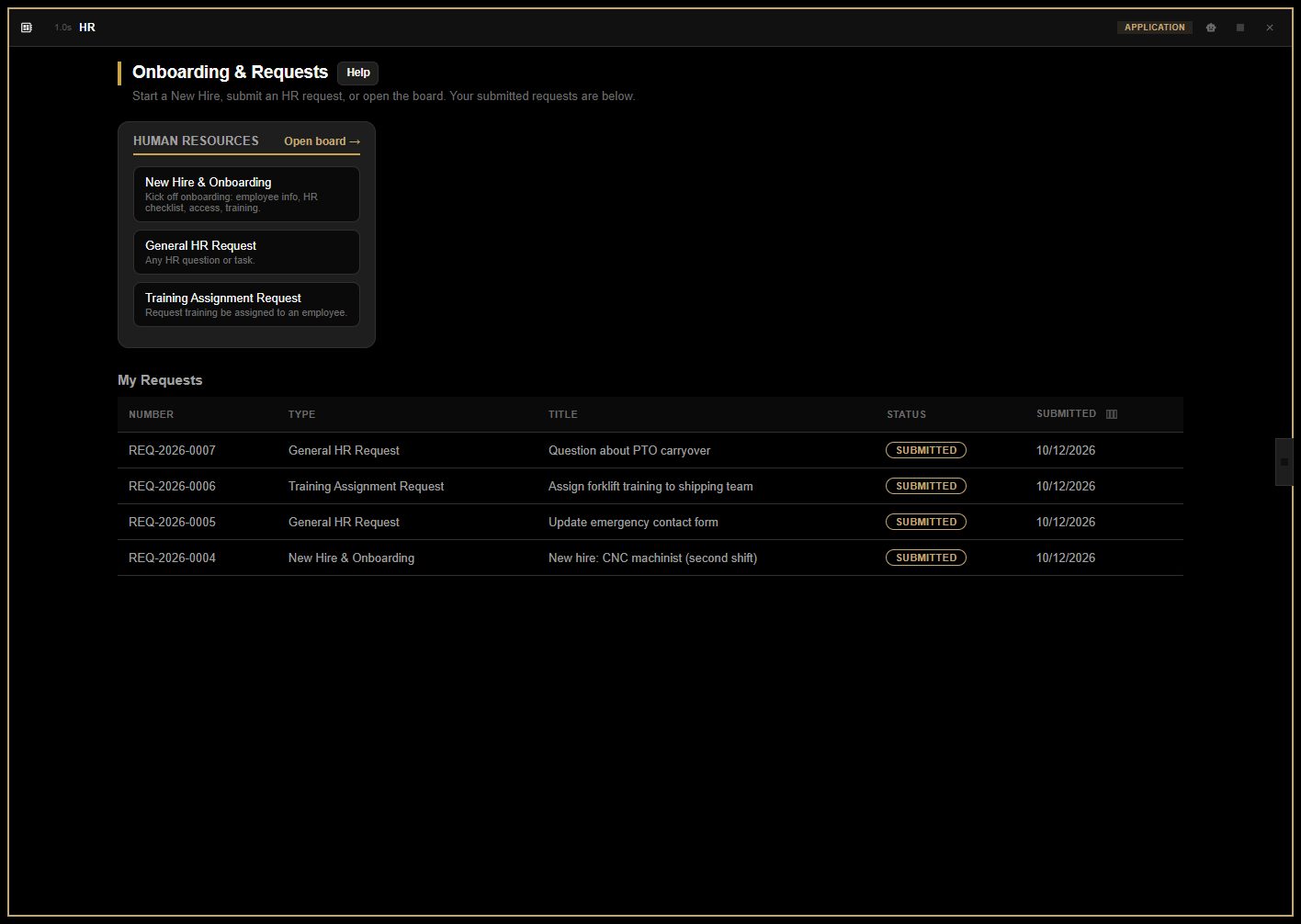
Submit an HR request
Who can do this: every employee.
- Left nav → Requests.
- Click a tile, for example General HR Request.
- Fill in the Subject, Priority and Description.
- Click Submit Request (or Save Draft to finish later).
Expected result: Request submitted. It is listed under My Requests with its status (Submitted, In Progress, Completed). A draft is visible only to you until you submit it.
Cancel a request
Who can do this: the person who submitted it, or an agent on the department's board.
- Open the request (from My Requests, or the board).
- Click Cancel Request and confirm.
Expected result: the request is Cancelled. Completed or already cancelled requests can't be cancelled.
Start a new hire
Who can do this: HR, and anyone with people reporting to them in the org chart (managers can always submit a New Hire).
- Left nav → Requests → New Hire & Onboarding.
- 1 — Employee Information: name, personal email, phone, department, position, start date, manager.
- 2 — HR Checklist: tick what is done (offer letter, I-9, W-4…).
- 3 — Network Access, Permissions & Software: tick what they need.
- Pick the Trainings to assign.
- Click Submit Request.
Expected result: HR sees it on the board. Work email and employee number are assigned by HR/IT after approval.
Approve a new hire
Who can do this: HR (approvers).
- Open the request (from your department's board, or Requests).
- Check the details, then click Approve & Create Employee and confirm.
Expected result: Approved — employee created. The new employee is onboarding, with the onboarding documents assigned, the trainings assigned, and their access listed on Onboarding Tasks. Open employee record jumps to them.
A New Hire can't be dragged to another column on the board before it is approved: approval is what creates the employee.
Request a training for someone
Who can do this: managers and HR (people who can submit Training Assignment requests).
- Left nav → Requests → Training Assignment Request.
- Pick the Employee, tick the Trainings to assign, and set a due date if needed.
- Click Submit Request.
Expected result: when HR approves it, the trainings are assigned and the request is Completed.
Set up a new hire's access
Who can do this: IT / operations.
- Left nav → Onboarding Tasks. It shows what is Requested, grouped by employee.
- When an item is done, click Provision (add a note if you like). If it can't be done, click Deny and say why.
Expected result: the item moves out of Requested. Nothing here — the queue is clear when all is done.
Work your department's board
Who can do this: department members (agents change requests; viewers only look).
- Left nav → Requests → Open board → on your department's card.
- Switch between Kanban and Table.
- Open a request and change its status as you work it.
Who is on each board is set in Module Settings → Configuration → Lists & Departments → Department members (see Set up department boards).
Employees
Find an employee
Who can do this: people who can see employees (HR, managers).
- Left nav → Employees. Type in the search box (name or employee number), or filter by department and stage.
- Click a person to open their record.
The Stage column says how far along each person is: Needs login, Onboarding 3/5, Active or Inactive. Outstanding lists what they still owe (documents, trainings, access).
Add an employee by hand
Who can do this: HR (people who can edit employees).
- Left nav → Employees → Add Employee.
- Fill in the profile: name, emails, phone, department, position, start date, manager.
- Click Create Employee.
Expected result: the person is on the roster. Most employees arrive through an approved New Hire request instead.
Edit an employee's profile
- Employees → the person → Profile.
- Change what you need, then click Save Profile.
The Manager field sets the reporting line used by the org chart, My Team and PTO approvals. Someone can't report to themself or to anyone below them.
Give an employee a portal login
Who can do this: HR (people who can edit employees).
- Employees → the person → Profile → Portal access.
- Check the Login email, then click Create portal login. Hand the person the one-time password shown.
- If they already have a login, type its email under …or link an existing login by email and click Link existing.
Expected result: This employee has a linked portal login. When they sign in they see the Employee Portal. Manager abilities come from the reporting line; there is no role to pick.
To move the link to another login, type its email and click Relink. Unlink removes the link and the Employee Portal role (a login created here and left with no other access is switched off).
View an employee's portal (support)
Who can do this: HR with the view as employee permission.
- Employees → the person → Profile → View employee portal.
Expected result: their portal opens read only, for support. Every view is logged.
Delete or restore an employee
- Employees → Delete on the person's row, and confirm.
- To bring someone back, set the stage filter to Deleted and click Restore.
Deleting removes them from lists; their history (training, documents, PTO) is kept.
Record an employee's benefits
- Employees → the person → Benefits → Add a benefit.
- Pick the Benefit, the Tier if it has tiers, the Start date and a Note, then click Add.
Expected result: the benefit is listed with its yearly employer value. Edit sets an end date; Remove takes it off. The list of benefits comes from Module Settings → Configuration → Benefits.
See the org chart
- Employees → Org chart.
- Switch between Chart and Graph; Fit, Collapse or Expand to find your way. CSV downloads it.
The chart is drawn from each employee's Manager.
Onboarding and training
Sign your onboarding documents
Who can do this: every employee.
- Left nav → Employee Portal → My Onboarding (or My Documents).
- Click Open on a document and read it.
- If it needs a signature, click a SIGN HERE box, type your full legal name, draw your signature, and click Adopt & Sign.
- Click Sign & Complete (or Acknowledge & Complete, or Mark as Read).
Expected result: the document shows as completed, and HR sees it on your record. The signature is tied to that version of the document.
Complete a training
Who can do this: every employee.
- Employee Portal → My Training.
- Open the training and read or watch it.
- Tick I have read and understand this training material.
- Click Complete Training.
Expected result: Training completed — certificate issued (when the training issues one). View / download opens the certificate; Download PDF or Print it. Each certificate carries a verification code.
Assign the onboarding packet
Who can do this: HR (people who can edit employees).
- Employees → the person → Onboarding.
- Click Assign packet.
Expected result: Assigned N document(s), each with its status. Approving a New Hire does this by itself. Clicking it again only adds documents the person doesn't have yet.
Record a document signed on paper
- Employees → the person → Onboarding → Upload a signed paper copy.
- Pick the Packet document, the Date signed and the Scanned file, then click Upload & attach.
Expected result: the document is completed and marked paper, with the scanned copy on file.
Assign a training
Who can do this: HR (people who manage training).
- Employees → the person → Training.
- Pick the training and an optional Due date.
- Click Assign.
Expected result: the training is listed as assigned, and the employee sees it in their portal. Assigning a training the person already has open changes nothing.
See who still owes what
- Left nav → Employees.
- Read the Stage and Outstanding columns. Click Outstanding to open that tab on the person's record.
Managers see the same for their own people in Employee Portal → My Team.
Add a document to the onboarding packet
Who can do this: HR (people who manage onboarding documents).
- ⋮ on HR → Module Settings → Configuration → Documents.
- Click Add Document. Type the Title, pick the Kind (document or video), attach the File, and tick Requires acknowledgement or Requires signature.
- Click Save Document.
- For a signature PDF, click Place fields to mark where people sign.
Expected result: the document is in the packet for every new hire from now on. Edit document opens a Word-style editor; every save is a new version you can compare and restore. Attach files… matches several files to documents by name at once. Retire takes a document out of the packet (Activate puts it back).
Add a training
Who can do this: HR (people who manage training).
- Module Settings → Configuration → Trainings → Add Training.
- Type the Title and Category, and attach the document (PDF, Word, PowerPoint or an image).
- Tick Issues a certificate on completion if it should.
- Click Save Training.
Expected result: the training is in the library, ready to assign.
People who can't open Module Settings use the Trainings (and Documents) buttons on the Employees page instead.
Brand the certificates
Who can do this: administrators (people who can change HR's settings).
- Module Settings → Configuration → Trainings → open Certificate branding.
- Set the company name, logo and the attestation wording, then click Save branding.
Expected result: Branding saved. Certificates issued from now on use it.
Time off (PTO)
Request time off
Who can do this: every employee.
- Left nav → Employee Portal → My PTO. You see your Balance, Pending and Available hours.
- Under Request PTO, pick the First day and Last day, and type the Hours.
- Add a Note if you like.
- Click Submit.
Expected result: PTO request submitted — your manager will review it. While it is pending you can Withdraw it. Once approved, only your manager or HR can cancel it.
Approve or deny time off
Who can do this: managers (for anyone below them in the reporting line) and HR.
- Employee Portal → Approvals, or Employees → PTO → Waiting on me.
- Click Approve (a note is optional) or Deny (give a reason; the employee sees it).
Expected result: Approved — hours debited. The employee's balance goes down by the hours. Nobody can decide their own request.
Set or correct PTO balances
Who can do this: HR (people who manage PTO).
- Employees → PTO → Balances.
- To load everyone at once, click Import balances… and pick a spreadsheet (CSV or Excel) with an Employee # column and a Balance column. Check the preview, then save it.
- For one person: Employees → the person → PTO → Ledger entry. Pick Accrual (hours earned), Correction (+ or −) or Set the balance to, type the hours, the date and why, then Add.
Expected result: the balance and the ledger show the change. All Requests lists every PTO request.
File time off for an employee
Who can do this: HR (people who manage PTO).
- Employees → the person → PTO → File PTO for this employee.
- Pick the days and hours. Tick an HR exception if needed (waiting period, or more than the available balance).
- Click File.
Expected result: the request is pending for their manager, and any exception is recorded on the audit trail.
Set the PTO rules
Who can do this: administrators (people who can change HR's settings).
- Module Settings → Configuration → PTO.
- Set the Waiting period (months) after the start date (0 = from the first day), and tick Let employees request more than their available balance if you allow it.
- Click Save.
Careers and job postings
Post a job
Who can do this: HR (people who manage careers).
- Left nav → Job Postings → New job.
- The job: title, department, location, type (full time, part time…), workplace (on site, hybrid, remote), schedule and openings. Manage locations edits the Location list (administrators).
- Pay: from, to, per hour or per year. Whether pay shows on the website is a company setting (Show pay ranges on the careers website).
- Description: a summary, qualifications, what they'll do, nice to have.
- Requirements: pick from the library or type your own, then Add. Tick Save to library to reuse it.
- Tick the Benefits on this job. Set a Close on date if it should come down by itself.
- Click Save, then Publish to website.
Expected result: Published. It appears on the website within a minute. The posting shows Live on website. A posting needs a summary and requirements before it can be published.
Close a job
- Open the posting and click Close posting.
Expected result: it leaves the website within a minute. Candidates and their resumes are kept. Reopen on website puts it back.
Review candidates
Who can do this: HR (people who can see candidates).
- Left nav → Candidates. Filter by job; sort Best fit first or Newest first.
- Click a candidate. Open resume to read it.
- Move them along with Hiring stage: New, Screen, Interview, Offer, Hired, Not selected or Withdrawn.
- Keep HR notes and click Save.
Delete application removes the candidate and their resume (people who manage careers).
Score a resume with AI
Who can do this: HR. Your administrator must turn AI screening on first (Module Settings → Preferences → careers_ai_scoring).
- Open the candidate.
- Click Score with AI. It takes about 20 seconds.
Expected result: a fit score (strong, good, partial or weak), strengths, gaps to check and questions to ask. It is a reading aid for HR, not a decision. Legal requirements (for example work authorization) are marked Verified by HR and don't change the score. Re-score runs it again.
Add a candidate by hand
Who can do this: HR (people who manage careers).
- Candidates → Add candidate.
- Pick the Job, type their name, email and phone, pick Where they applied (Indeed, Referral, Job fair, LinkedIn, Other), and attach the Resume (PDF, Word or text).
- Click Add and score. (It adds the candidate; click Score with AI on their page to score.)
Settings and lists
Set up department boards
Who can do this: administrators and people who manage HR's configuration.
- Module Settings → Configuration → Lists & Departments → Department members.
- Pick the department, then the user and their level: Agent (works the board) or Viewer (sees the board). Click Add member, then Save members.
Expected result: that person sees the department's board under Requests. With no members, only HR and administrators see it.
Edit departments and other lists
- Module Settings → Configuration → Lists & Departments → Code lists.
- Pick a list (for example
departments, positions, request_types, request_statuses, locations, training_categories).
- Click Add entry, or change a label, order or Active. Click Save list.
Protected entries can be relabelled but not removed. A request type keeps its department and form when you rename it.
Everyday tips
Rearrange table columns
Any table in HR (the roster, candidates, PTO balances…) can be laid out your way. On a computer, drag a column header left or right. On any device, click the small Columns button at the right end of the header row: tick or untick a column to show or hide it, use the arrows to move it, and Reset to go back to the module's order. Your layout is saved for you only and follows you to any device.
Ask the HR Assistant
Open the assistant (the chat on the HR module) and ask in plain words. It works only with what you are allowed to see and do:
- How-tos: "How do I assign a training?" It answers from this help, with where to click.
- Your own record: "What do I still need to complete?", "What's my PTO balance?", "What happened to my request?"
- Looking things up (if you can see employees, PTO or candidates): "Who still owes onboarding documents?", "Headcount by department", "Which PTO requests are waiting on me?", "Show candidates for the Welder posting".
- Making changes (if you are allowed to): submit a request or your own PTO, approve or deny PTO for your people, approve a request, assign a training or the onboarding packet, move a candidate or add a note, create, publish or close a job posting.
Before any change the assistant shows you what it will do and waits for your yes. It never approves, denies, publishes or closes anything without that.
Reviews
Employee reviews are forms in Inspections & Forms, scheduled once a year on every employee. Each one shows on the employee's record under Reviews & forms (for people who can see all submissions there).
Payroll
Payroll is off unless your administrator turns it on. When it is on:
- Left nav → Payroll → New pay period (start, end, check date) → Create.
- 1 · Import time (Import file, or Fetch time from the time source), and Sync approved PTO.
- 2 · Unmatched employees: match anyone the import didn't recognize, then Apply.
- 3 · Review: adjust hours if needed (every adjustment needs a reason; Save adjustment).
- 4 · Export to your payroll provider, then Download the file. Lock the period when it is done (Reopen undoes it).
The source, target and pay components are set on Payroll → Setup.
Reference
The pages
| Page |
What it is for |
Who sees it |
| Requests (Onboarding & Requests) |
Request tiles by department, My Requests, and Open board → for department members |
everyone with the module |
| Employees |
The roster. A person's record has tabs: Profile, Onboarding, Documents, Training, Access, Benefits, PTO, Reviews & forms. Org chart and PTO are buttons here |
HR, managers who can see employees |
| Onboarding Tasks |
Access and equipment to set up for new hires |
IT / operations |
| Employee Portal |
My Requests, My Onboarding, My Profile, My Training, My Documents and My PTO; Approvals and My Team for managers |
everyone with the module |
| Candidates, Job Postings |
Careers & Recruiting |
HR (careers) |
| Payroll |
Pay periods, time import, export (only when Payroll is turned on) |
payroll staff |
Hiding a page from the left nav is not what protects it: every page and action checks the person's access itself. Every working page has a Help button next to its title.
Employee stages
The Stage column on the roster says where each person is:
| Stage |
Means |
| Needs login |
No portal login is linked yet, so they can't sign their documents or do their trainings |
| Onboarding 3/5 |
They still owe onboarding documents or trainings (3 of 5 done) |
| Active |
Nothing outstanding |
| Inactive |
Their status is inactive or terminated |
The employment status (onboarding, active, inactive, terminated) is separate. A new hire is onboarding until their start date, then active by itself.
Request types
| Request |
What approving it does |
| New Hire & Onboarding |
Creates the employee (status onboarding), lists their access on Onboarding Tasks, assigns the chosen trainings and the onboarding documents. The request goes to In Progress |
| Training Assignment Request |
Assigns the trainings to the employee. The request is Completed |
| General HR Request |
Moves it to In Progress; HR works it on the board |
Statuses: Draft, Submitted, In Progress, Completed, Cancelled. A draft is seen only by its author. Administrators can edit the lists in Module Settings → Configuration → Lists & Departments.
Department boards
Each department has a board of the requests sent to it. Members are set per department in Lists & Departments → Department members:
- Agent: sees the board and works it (changes status, assigns, cancels), with the triage permission.
- Viewer: sees the board only.
People who can see every request (HR oversight) see every board.
PTO
- A person's balance is a running ledger: an opening balance, accruals (+), corrections (±), and the hours each approved request takes.
- Available = balance − pending requests.
- Anyone above the employee in the reporting line who can approve PTO can approve their requests. HR can decide any request. Nobody decides their own.
- Cancelling an approved request gives the hours back.
- Module Settings → Configuration → PTO: a waiting period (months after the start date before PTO can be taken) and whether employees may request more than their available balance. HR can file an exception for either.
Onboarding documents and trainings
- Documents (Module Settings → Configuration → Documents) is the packet every new hire works through. A document (or a video) can require an acknowledgement or a signature (typed name plus a drawn signature, tied to that version of the file). Edit document keeps versions you can compare and restore. Attach files… matches several files to documents at once. Replacing a file after someone completed it starts a new version; completed records keep what was actually signed.
- Trainings (Module Settings → Configuration → Trainings) is the training library, with how many people each is assigned to and have completed it. A training can issue a certificate.
- Certificates show the company branding, a certificate number and a verification code.
- Employees complete both in the Employee Portal.
Benefits
The benefits library (Module Settings → Configuration → Benefits) holds each benefit once: name, category, description, eligibility and its value (a fixed amount, a percent, or tiers such as Employee only and Employee + family with a yearly employer cost). The same library is used on job postings (Benefits on this job) and on each employee's Benefits tab.
Careers
- A job posting is a draft until Publish to website, then Live on website until it is closed or its Close on date passes. It needs a summary and requirements to be published.
- The requirements library (Module Settings → Careers) holds requirements you reuse; a Default one is on every new posting.
- Job locations are the Location list on a posting (one per line). People with Module Settings can also edit it from the job form (Manage locations). Choosing Remote also sets the workplace to Remote.
- Pay ranges show on the website only while Show pay ranges on the careers website is on.
- Score with AI reads the resume against the job's requirements and screening notes. Fit labels: strong (85+), good (70+), partial (50+), otherwise weak. It runs only when you click it, and only while AI screening is turned on.
- Applications can be deleted automatically after a number of days (
careers_candidate_retention_days in Module Settings → Preferences); hired candidates are kept.
The HR Assistant
The assistant works through tools that use the same permissions as the pages. What each can do:
| Ask about |
Tool |
Needs |
| My record, onboarding, trainings, certificates |
hr_my_record |
see your own profile |
| My PTO balance and requests |
hr_my_pto |
request PTO |
| My requests |
hr_my_requests |
submit requests |
| My team (everyone below me) |
hr_my_team |
see your own profile |
| Find an employee; one employee's record |
hr_search_employees, hr_get_employee |
see employees |
| Headcount; who still owes documents or trainings |
hr_headcount, hr_outstanding_items |
see employees |
| Access still to set up |
hr_access_queue |
see access checklists |
| The training library |
hr_list_trainings |
submit requests |
| Requests (yours, your boards, or all) |
hr_list_requests, hr_get_request, hr_request_types |
submit requests |
| PTO waiting on me; everyone's balances |
hr_pto_pending, hr_pto_balances |
approve PTO; manage PTO |
| Job postings and candidates |
hr_list_jobs, hr_list_candidates, hr_get_candidate |
see candidates |
Changes, each shown to you first and done only after your yes:
| Change |
Tool |
Needs |
| Submit a general request for yourself |
hr_submit_request |
submit requests (and that request type) |
| Approve a request |
hr_approve_request |
approve requests |
| Change a request's status on a board |
hr_set_request_status |
triage, and agent on that board |
| Request your own PTO; withdraw or cancel PTO |
hr_submit_pto, hr_cancel_pto |
request PTO |
| Approve or deny PTO |
hr_decide_pto |
approve PTO, for your people (HR: anyone) |
| Assign a training; assign the onboarding packet |
hr_assign_training, hr_assign_onboarding_packet |
manage training; edit employees |
| Move a candidate or add a note |
hr_update_candidate |
see candidates |
| Create a job posting (draft); publish or close it |
hr_create_job, hr_set_job_status |
manage careers |
How-to questions are answered from this help.
Dashboards
HR data can be charted on the platform Dashboards page (or ask the dashboard assistant). Each dataset needs the permission shown; payroll is not in any of them.
| Dataset |
What you can chart |
Needs |
| Employees |
Headcount (active), everyone on file, onboarding, inactive, new hires this month and in the last 90 days, portal logins, average tenure; by department, position, employment type, location, status, start month or year, and tenure (0–1, 1–3, 3–5, 5+ years) |
see employees |
| Training assignments |
Assignments, completed, completion rate, overdue, due in the next 30 days, average score; by training, category, status, due or completed month, employee and department |
manage training |
| Hiring (candidates) |
Applicants, still in play, interviewing, offers, hired, hire rate, applied this week, average AI fit score; by job, department, stage, source, applied month and fit band |
see candidates |
| Time off (PTO requests) |
Requests, hours, approved hours, pending, coming up (approved, not started yet), off today; by status, type, employee, department and start month |
manage PTO |
Deleted employees are never counted, nor their trainings and PTO.
Module Settings → Configuration
Open it from the ⋮ on HR in the left nav → Module Settings.
| Tab |
What it holds |
| Documents |
The onboarding document library |
| Trainings |
Certificate branding and the training library |
| Lists & Departments |
Code lists (departments, positions, request types, statuses, locations, categories, checklists) and Department members |
| PTO |
Waiting period, and whether employees may request more than their balance |
| Benefits |
The benefits library |
| Careers |
Careers website settings (show pay, careers page address, AI model, job locations) and the requirements library |
On/off switches (Payroll, AI screening) are under Module Settings → Preferences; administrators find every setting explained on the Setup tab of this help.
Table columns
Every table can be rearranged by each person: drag a header, or use the Columns button at the right end of the header row (show, hide, move, Reset). The layout is saved per person and per table.
Questions
Where is the help?
The Help button next to the title on each HR page (and in Module Settings). Or ask the HR Assistant, for example "How do I request time off?".
I don't see the New Hire tile.
Your role can't submit New Hire requests, and nobody reports to you in the org chart. Ask your administrator, or HR to set you as their manager.
I can't see my department's board.
You need to be a member of that department's board. An administrator adds you in Module Settings → Configuration → Lists & Departments → Department members.
My PTO request was refused: "PTO can be taken starting …".
You are still in the waiting period after your start date. HR can file an exception for you.
My PTO request was refused: "… h is more than the … h available".
You asked for more than your available balance (balance minus pending requests). HR can file an exception.
How do I cancel approved time off?
Ask your manager or HR. Once approved, only they can cancel it; the hours go back to your balance. While it is still pending you can Withdraw it yourself.
The portal says my login isn't linked to an employee record.
Ask HR to link your login to your employee record (Employees → you → Profile → Portal access).
AI screening is off, so resumes stay in your company's account. An administrator can turn it on (Module Settings → Preferences → careers_ai_scoring). It also needs a resume on file and your company's AI key.
I clicked "Add and score" but there's no score.
Adding a candidate doesn't score them. Open the candidate and click Score with AI.
Where did Documents and Trainings go?
Since 0.9.2 they are in Module Settings → Configuration. If you can't open Module Settings, use the Trainings and Documents buttons on the Employees page.
I can open Configuration but saving the PTO rules or branding fails.
Those are HR settings: saving them needs the change HR's settings permission (REQUESTS.MANAGE_SETTINGS) or a tenant administrator. Lists and department members only need the configuration permission.
Why is Payroll empty or missing?
Payroll is off unless your administrator turns it on.
Why don't I see an employee's reviews?
Reviews are Inspections & Forms submissions. You need to be able to see all submissions there.
I moved or hid table columns. How do I get them back?
Click the Columns button at the right end of the table's header row and click Reset.
Can the HR Assistant approve things for me?
Only what you could approve yourself, and only after it shows you what it will do and you say yes. It can't see or change anything your access doesn't allow; if it says Permission denied, ask your administrator or HR.
The HR Assistant says it can't find someone.
Use their full name or employee number. If several people match, it lists them and asks which one.