Overview
Accounting is job costing: what each project costs and earns, line by line, and the invoices that bill it. Crews feed it by filling in forms and never see a dollar. The office adds what was spent, checks the rates, bills the work and exports the invoices to QuickBooks Online. A chart of accounts and a general ledger come later and will take summarized entries from here.
Labor rates, cost codes and invoices live here. Projects, customers and crews come from the module your workspace uses for them (any module that publishes the Project and Customer record sources). Products and vendors live in the Price Book (optional). Crews post their time and materials on forms in Inspections & Forms and the DV Field phone app.
A job's money, from posting to invoice
FieldDailyField Work OrderPost time→Labor, materials, equipment lines
priced as they post OfficeReceipt or billVendor invoice→Cost lines
Add cost LedgerLabor, materials, equipment linesCost lines→Job cost ledger→Project P<&M Billing Summary
BillT&M Billing Summary→Draft invoiceIssue→Issued invoiceExport→QuickBooks Online
OverheadShop / YardDrive timeTraining→Internal accounts
cost only, never billed
- A crew lead submits a daily, a Field Work Order or a Post time form. Its Labor, Materials and Equipment rows become lines in the ledger, charged to the project (or to an internal account).
- Labor is priced as it posts: cost and billable from the rate sheet in effect on the work date (how labor gets its dollars). Price Book items are priced too. Typed materials and rentals wait for the office to cost them.
- The office adds what was spent: receipts, rentals and vendor invoices.
- Projects shows each project's P&L: cost by cost code, billable, revenue, gross profit and margin.
- The T&M Billing Summary lays out what a project's time-and-materials work bills for a period. Create invoice turns it into a draft invoice; a contract project gets progress invoices.
- Issued invoices are exported to QuickBooks Online, where payments are recorded.
Nothing is ever edited. A reopened form, or Reverse on a line, adds reversing lines, so every total nets out (never edited).
Who uses it
| Who |
What they do here |
| Owner, office manager (Admin) |
Everything: rates, costs, P&L, billing, invoices, settings |
| Office staff (Operator) |
Read everyone's hours and quantities and the transactions — no dollars unless given View costs |
| Crew leads |
Nothing here directly. Their forms post for them. With View team hours they can see their crews' hours (no dollars) |
| Crews |
Nothing. They fill in forms and never see a rate |
Exactly who can do what: Who can do what.
Where things are
| Place |
What's there |
| Left nav → Accounting → Dashboard |
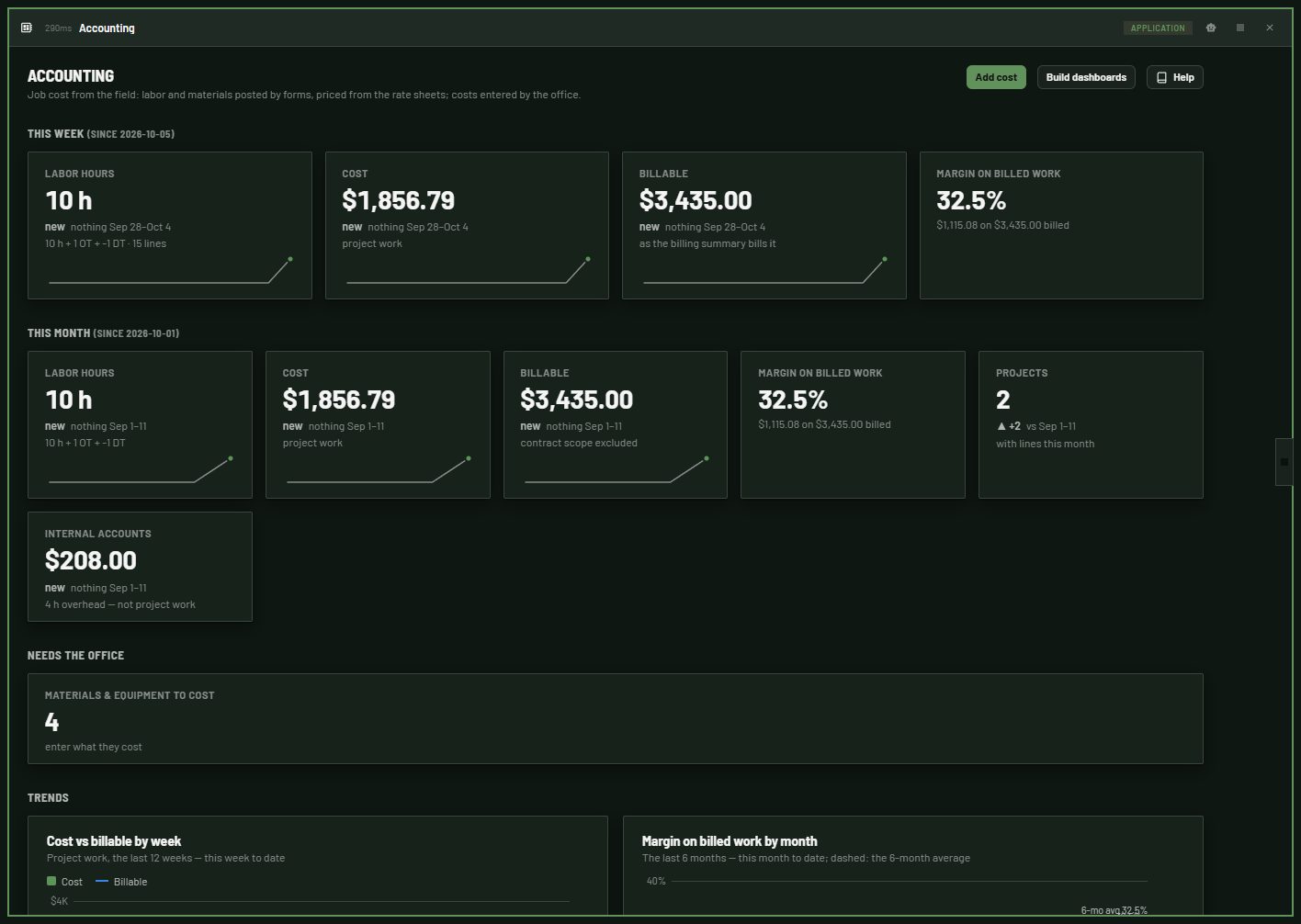
This week and this month, each against the same point of the period before: labor hours, cost, billable, margin on billed work; trend charts; what needs the office; the projects; Add cost; Build dashboards |
| Left nav → Accounting → Projects |
Every project's customer, hours, cost, billable, revenue, gross profit and margin; click one for its P&L. The Internal accounts tab: overhead per account and department |
| Left nav → Accounting → Transactions |
Every line, with Add cost, Cost it, Receipt, Reverse and Export CSV |
| Left nav → Accounting → T&M Billing |
The T&M Billing Summary of a project for a period: Print / PDF, CSV, Create invoice (and Create progress invoice on a contract project) |
| Left nav → Accounting → Invoices |
Every invoice by status, Unbilled work per project, New progress invoice, Export to QuickBooks…; an invoice opens in the side panel |
| Module Settings → Accounting → Configuration |
Labor rates (company multipliers, rate sheets, labor roles), Cost codes, Surcharges, Internal accounts |
| Module Settings → Accounting → Preferences |
T&M markups, profit & overhead, bond, sales tax, invoice numbering and terms, retainage, crew-lead hours (settings) |
| Any form in Inspections & Forms |
The Labor, Materials and Equipment sections (Form builder toolbox → Standard sections) |
| Your project module's project page, if it shows actuals |
The project's actuals from here, beside its estimate |
| A crew, a person or a project's ◷ Hours in other modules |
Accounting's hours page in the side panel |
| Dashboards (sidebar) |
The Office and Management dashboards, once built |
Every page has a Help button that opens this help in the side panel.
Ask the Accounting Assistant
The Accounting Assistant (the module's chat) answers questions and does the work with the same rights you have:
- How do I…? It searches this help and tells you where to click, with a link to the section.
- Questions about the numbers: a project's P&L, unbilled work, what an invoice billed, which invoices are past due, overhead by department, hours by person or crew, what a labor role costs and bills on a date. Every number comes from the ledger; it never guesses.
- Doing things you are allowed to do: add a cost, enter a vendor invoice, reverse a line, add an internal account, create a draft invoice from the billing summary, issue, void or mark invoices exported. It tells you what it is about to do and waits for your yes. Reversing a line and voiding an invoice also ask for approval in the app.
It can't attach a receipt file (use Add cost on the page for that), and it never shows dollars to someone without View costs.
How-tos
Each how-to says who can do it. If a button is missing, you may not have that access; see Who can do what. Settings are in Module Settings → Accounting → Configuration (the tabs Labor rates, Cost codes, Surcharges, Internal accounts) unless a step says Preferences.
Labor rates
Set the company multipliers
Who can do this: Accounting administrators (Manage).
- Module Settings → Accounting → Configuration → Labor rates.
- Click Edit defaults (top right of Company multipliers).
- Type Premium (OT) × (e.g. 1.35), Double time × (e.g. 1.7) and Burden × (payroll taxes, insurance and benefits on top of the wage: 1.30 = +30%).
- Click Save.
Expected result: every sheet that has no multipliers of its own shows new OT, DT and burdened columns. Lines already posted keep their amounts. Until you save your own, the built-in multipliers are 1.35, 1.7 and burden 1.0.
Add a labor role and its rates
Who can do this: Accounting administrators (Manage).
- Labor rates → under Labor roles, click Add labor role.
- Type the Name (Landscape Foreman) and Trade (LANDSCAPE), then Save. Only the name ever reaches the field.
- In the left list, click the standard sheet (under Standard rates).
- On the role's row, type its Cost (wage) – Standard and Bill (T&M) – Standard rate. OT, DT and the burdened cost fill in as you type.
- Click Save rates.
Expected result: the role shows on the sheet with every column filled in. Labor posted from now on with that role is priced. Lines posted earlier without a rate stay unpriced until you fix them.
A role left empty on the standard sheet posts unpriced. Emptying a rate and saving removes it from that sheet.
Give a customer negotiated rates
Who can do this: Accounting administrators (Manage).
- Labor rates → New rate sheet.
- For: One customer (negotiated) (or One project (negotiated)), and pick Which one.
- Name it and set Effective from.
- Start from the standard sheet, Adjusted by e.g. 5 % on bill rates (or cost rates, or both).
- Save. Then change single roles on the sheet if needed and click Save rates.
Expected result: the sheet is listed under Customer rates (or Project rates). Labor on that customer's projects, dated on or after the effective date, is priced from it. A role left empty on it falls through to the standard sheet (which sheet prices a line).
Raise every rate on a sheet by a percent
Who can do this: Accounting administrators (Manage).
- Labor rates → click the sheet in the left list.
- Click Adjust %, type the percent (negative to lower), pick bill rates, cost rates or both.
- Click Adjust.
Expected result: every rate on that sheet moves by the percent. Posted lines don't change.
For next year's rates, make a New rate sheet → Everyone (standard rates) with the new Effective from date, Start from this year's sheet, adjusted by the raise. Work dated before that day keeps pricing from the old sheet.
Cost codes and internal accounts
Add a cost code or set its QuickBooks name
Who can do this: Accounting administrators (Manage).
- Configuration → Cost codes. Click a code to edit it, or Add cost code.
- Code (IRR; it can't change once saved), Name (Irrigation parts), Category (Labor, Materials, Equipment, Subcontractors, Fuel, Card fees, Other).
- QuickBooks name: the Product/Service name exactly as it is in QuickBooks Online. It becomes the invoice line's Item in the export.
- GL account can stay empty (for the ledger later). Save.
Expected result: the code is listed with its QuickBooks name. To retire a code, set it Inactive and make a new one; what was posted under it stays.
Add internal accounts (overhead)
Who can do this: Accounting administrators (Manage).
- Configuration → Internal accounts → Add internal account.
- Name (Shop / Yard), Code (OH-CON-SHOP), Department (Construction — pick one already used or type a new one), Type (Shop / Yard, Training, Drive time / travel, Vehicles, Equipment, Admin / office, Other).
- QuickBooks account: the account name exactly as in QuickBooks (Shop Labor). GL account can stay empty.
- Save. Repeat per department — typically Shop / Yard, Training and Drive time for each of Construction, Landscape and Maintenance.
- In Inspections & Forms → Form builder, open the forms crews use for shop and drive time (for example Post time), tick Charged to: Internal accounts, then Publish.
Expected result: the accounts are listed with their department and QuickBooks account, and crews see them as Shop / Yard — Construction on those forms. Set an account Inactive to stop offering it; what was posted to it stays. Nothing is created for you: each company adds its own accounts.
Costs and corrections
Enter a receipt or a bill (one amount)
Who can do this: people with Enter costs.
- Click Add cost (Dashboard, Transactions, or a project's P&L).
- Leave it on One amount.
- Charged to (a project, an Internal account (overhead), or a vehicle, piece of equipment or department when the company has those lists) and Which one.
- Date, Vendor, Paid by (card, on account, cash, other).
- Cost code, What (Mulch, 3 yd³), Amount (cost), and Qty / Unit if useful.
- Bill to customer (optional): what to bill for it. Empty bills at cost plus the T&M markup.
- Bills as (optional): leave it to follow the project, or mark it Day work, Extra or Contract.
- Attach the Receipt or bill (photo or PDF) and click Save cost.
Expected result: a Cost line on the project with Receipt. A card purchase may add a Card fee line if that surcharge is on.
Enter a vendor invoice line by line
Who can do this: people with Enter costs.
- Add cost → Vendor invoice (lines).
- Pick the project, the invoice date, the Vendor (from the Price Book, or typed), Invoice #, Paid by, and the Cost code for lines without an item.
- One row per invoice line: a Price Book item or a description, quantity, unit, unit cost as invoiced, and an optional bill for that line. Add line for more.
- Attach the invoice file once and save.
Expected result: one Cost line per invoice line, each showing Inv 10442 and the same receipt. Each line bills at its own bill if you typed one, else at the Price Book's sell, else at cost plus the T&M markup (where each amount comes from). A subcontractor's labor becomes actual cost only this way — never from dailies.
Cost a material or rental from a daily
Who can do this: people with Enter costs.
- Transactions, or Dashboard → Materials & equipment to cost, which opens Transactions showing only those lines.
- On the material or rental line, click Cost it.
- Enter the Amount (cost), Paid by and the receipt, then Save cost.
Expected result: a Cost line for it; the material no longer counts as to cost. It stays costed if the daily is reopened and submitted again. Lines priced from the Price Book when they posted never need this.
Fix labor that isn't priced
Who can do this: Accounting administrators (Manage) for the rates; whoever can reopen the form in Inspections & Forms for step 3.
A labor line is not priced when it has no labor role (a typed name, temp labor) or its role has no rate on any sheet that applies.
- Dashboard → Labor not priced opens Transactions showing only those lines (the last 3 months).
- Fix the cause: add the role's rate to the standard sheet (Add a labor role and its rates), or give the employee a labor role (in the module your employee list comes from).
- Reopen the form the line came from in Inspections & Forms and submit it again.
Expected result: the reopen reverses the old lines and the new submit posts them priced. A typed name stays unpriced: it has no role. Its hours still count.
Reverse a line
Who can do this: Accounting administrators (Manage).
- Transactions → find the line (search, dates, kind).
- Click Reverse → confirm.
Expected result: a negative reversal line dated like the original; both show greyed out and totals net out. Surcharge lines the original added are reversed with it. A surcharge line has no Reverse of its own — reverse the line it belongs to. A line already reversed can't be reversed again.
Correct a cost entered wrong
Nothing is edited. Reverse the wrong line, then Add cost again with the right amount. Lines posted by a form are corrected by reopening the form and submitting it again — never by hand.
Projects and hours
Read a project's P&L
Who can do this: people with View costs.
- Projects. Set From / To (the last 12 months by default). Search finds a project by name, customer or code.
- Click the project.
Expected result: tiles for Revenue (contract or T&M billable), Cost, Gross profit, Margin, Labor hours, Invoiced to date and Unbilled; then Cost by code and every line. A notice lists labor not priced and materials not yet costed. Add cost and T&M billing are on the page. How the figures are worked out: revenue and margin.
See hours by person, crew or project
Who can do this: View (everyone's hours) or View team hours (the people you lead). Dollars only with View costs.
- Open the hours page from a crew, a person, or a project's ◷ Hours in the module that lists them.
- Pick By project, By employee or By day, and This week, This month, Last month or Custom.
- Click a row to go one level deeper: a person → their projects → their days on one → the daily the hours came from. Back and the breadcrumb return.
Expected result: regular, OT and DT hours, their total, days worked and the last one. Reversed lines net out. Temp labor shows as typed name.
See overhead by department
Who can do this: View sees hours; View costs also sees cost.
- Projects → Internal accounts tab. Set the dates; pick a department to narrow it.
- Click an account for its lines and cost by code.
Expected result: one tile per department (cost, hours, accounts), then each account with code, department, type, QuickBooks account, hours, labor, materials, other and total cost. In QuickBooks, post each account's cost to its mapped account until our own ledger does.
Billing and invoices
Run the T&M Billing Summary
Who can do this: people with View costs.
- T&M Billing. Pick the project; set From / To (the last two weeks by default).
- Read the sheet: materials, rentals, operated equipment, labor, premium labor, in-scope premium, subcontractors, then sales tax, subtotal, profit & overhead, total, bond and total with bond (what's on the summary).
- Print / PDF prints it on the letterhead; CSV exports every row.
Expected result: only lines not yet on an invoice are on the sheet; a note names any invoice the period overlaps. Materials not yet costed (and with no Price Book price) are listed below the sheet: they bill once costed.
Invoice T&M work from the summary
Who can do this: people with Manage invoices.
- Run the T&M Billing Summary for the project and period to bill.
- Click Create invoice → confirm.
Expected result: a draft (INV-1001, or your prefix and number) opens in the side panel. Its lines match the sheet row for row and Total due = Total with bond. Every billed line is linked to it, so the summary for that period is now empty and the work is never billed twice. Labor not priced and materials not costed are left off; they bill on a later invoice once fixed. Nothing to invoice in this period means it's all on an invoice already, or nothing bills yet.
Bill a contract project's progress (with retainage)
Who can do this: people with Manage invoices.
- Invoices → New progress invoice → pick the contract project (or T&M Billing → the project → Create progress invoice).
- The form shows the contract with approved change orders, billed so far and what remains.
- Enter Bill this period ($) or % of contract, the Retainage % (defaults to the retainage setting), the invoice date and the period.
- Click Create draft.
Expected result: a draft with Progress billing and, with retainage, a negative Retainage held line. You can't bill more than remains. Progress billing is only for projects whose billing type is contract.
Edit, issue or void an invoice
Who can do this: people with Manage invoices.
- Invoices → click the invoice (it opens in the side panel).
- A draft: Edit changes the invoice date, due date, customer PO and notes (the lines are frozen). Issue → confirm locks it.
- An issued or exported invoice: type the QuickBooks invoice # and click Save.
- Void → confirm, on any invoice that isn't void.
Expected result: a voided invoice stays in the list marked Void; its lines are freed and show as unbilled again. If it was imported into QuickBooks, void it there too. To change an issued invoice's lines: void it and create it again.
Export invoices to QuickBooks Online
Who can do this: people with Manage invoices.
- Once: in QuickBooks Online, make sure every item name the file uses exists under Sales → Products and services, and set each cost code's QuickBooks name. Customer names must match QuickBooks exactly.
- Issue the invoices.
- Invoices → Export to QuickBooks… → the invoice-date range, CSV → Export. (One invoice: its panel → Export to QuickBooks (CSV).)
- In QuickBooks Online: Settings ⚙ → Import data → Invoices, upload the file, check each column maps to the field of the same name, keep our numbers (InvoiceNo), review and Import.
- Back here, enter the QuickBooks invoice # on any invoice QuickBooks numbered differently.
Expected result: every issued invoice in the range not yet exported is in one file and now shows Exported. Exporting again says there's nothing issued to export; QuickBooks CSV again in an exported invoice's panel downloads it again without changing anything. The file layout: QuickBooks export.
Find unbilled work
Who can do this: people with View costs.
- Invoices → Unbilled work (below the invoices).
- Each project shows what is unbilled, how many lines, their work dates and what was invoiced to date. Click Billing summary to open the summary for exactly those dates.
Expected result: the total at the top is every project's billable work that is on no invoice, by the billing summary's rules. Internal accounts are never there.
Dashboards and tables
Build the Office and Management dashboards
Who can do this: people with View costs who can create dashboards — usually the owner or office manager.
- Left nav → Accounting.
- Click Build dashboards (top right).
- If they already exist, confirm Rebuild dashboards. Charts you added to them are replaced.
Expected result: a message says how many charts were made. Open them from Dashboards in the sidebar. Both are shared with the whole company; each person sees only the charts their permissions allow. A chart from a module the company doesn't have (for example the leads and proposals charts, without a project module that publishes them) is left out. What they show: the dashboards.
Rearrange table columns
Who can do this: anyone, on any table in any module.
- Drag a column header left or right (on a computer), or click the small Columns button at the right end of the header row.
- In Columns, move, hide or show columns; Reset goes back to the original layout.
Expected result: the layout is saved for you only and follows you to any device. Other people's tables don't change.
Ask the assistant
Open the Accounting Assistant and ask in plain words: "What's unbilled on the Smith job?", "Which invoices are past due?", "How many hours did Crew 2 work this week?", "Enter the Sunbelt invoice 10442 for the Oak Street project". It uses the same data and rights you have, says what it will do before it changes anything, and waits for your yes.
Reference
How Accounting works out its numbers. For step-by-step tasks see How-tos.
How labor gets its dollars
Crews post hours. A form's Labor section has one row per person: Employee (the labor role fills in), Hours, OT hours, DT hours. A name that isn't on the list (temp labor) can be typed. Crews see no rates.
Accounting prices each line as it posts, from the rate sheet in effect on the work date. A line keeps the rates it was priced at: changing a rate sheet or the multipliers later never changes what was already posted.
Which rate sheet prices a line
The first of these that has a rate for the line's labor role, effective on or before the work date (the latest such sheet of each kind wins):
- the project's own sheet (One project (negotiated)),
- else the project's customer's sheet (One customer (negotiated)),
- else the standard sheet (Everyone (standard rates)).
A role left empty on a project or customer sheet falls through to the next sheet. An inactive sheet is skipped.
Cost and billable on a labor line
Each labor line has two amounts:
- Cost = regular hours × burdened cost + OT hours × burdened premium + DT hours × burdened double time.
- Billable = the same hours × the bill, bill-premium and bill-double rates (what T&M bills).
Rate sheets and multipliers
You type only each labor role's standard cost (wage) and bill rate. The rest is worked out:
| Rate |
Is |
| OT (premium) |
standard × the premium multiplier (built in: 1.35) |
| DT (double time) |
standard × the double-time multiplier (built in: 1.7) |
| Burdened cost |
cost × the burden multiplier (built in: 1.0 — none) |
| Burdened OT / DT |
cost × premium (or double) × burden |
The company multipliers (Edit defaults on Labor rates) apply to every sheet without its own; a sheet can carry its own (Edit on the sheet). Example: Construction Foreman cost 51.00, bill 75.00 → cost OT 68.85; bill OT 101.25, bill DT 127.50.
Negotiated rates: New rate sheet → One customer or One project, Start from another sheet adjusted by a percent on bill rates, cost rates or both. Adjust % moves every rate on a sheet at once.
Labor that isn't priced
A labor line with no labor role (temp labor), or whose role has no rate on any sheet that applies, still counts its hours. Its cost and billable stay empty until fixed, and the dashboard and the project page say so. Fixing the rate doesn't reprice old lines by itself: reopen and resubmit the form (Fix labor that isn't priced).
A Field Work Order says what its lines are, and each line carries that mark (Transactions shows it):
| Mark |
Means |
Bills |
| Day Work |
Time and materials |
In full, at T&M rates |
| Contract |
Inside the contract |
Only the OT / DT premium of its labor; nothing else |
| Extra |
Outside the contract — becomes a change order |
In full |
| (none — a daily) |
Follows the project |
In full on a T&M or service project; nothing on a contract project |
A cost the office enters can be marked too (Bills as), or left to follow the project.
Revenue and margin
A project's billing type comes from the project record, in the module your workspace uses for projects.
| Billing type |
Revenue on the project's P&L |
Revenue on the Projects list and dashboard |
| Contract |
the contract amount with approved change orders |
the contract with approved change orders plus what the project bills on top (Day Work, Extra, in-scope premium) |
| T&M, service |
what the lines bill (billable) |
the same |
Gross profit = revenue − cost; margin = gross profit ÷ revenue. Early in a contract job its margin looks high: the whole contract counts while costs are still coming in.
The dashboard's Margin on billed work is different: billable against the cost of only the lines that bill, so contract-scope cost (which has no revenue line of its own) doesn't show a fixed-price month at a loss.
The P&L also shows Invoiced to date (non-void invoices, before sales tax, all dates) and Unbilled (billable work on no invoice, all dates).
Billable is one rule everywhere
The project P&L, the Projects list, the Accounting dashboard, Unbilled work and a project module's actuals count as billable exactly what the T&M Billing Summary bills: Day Work and Extra in full, Contract lines only their OT / DT premium, and on a contract project nothing that isn't marked Day Work or Extra. Profit & overhead and bond are included; the sales-tax estimate is not (it isn't revenue). A cost with no bill amount counts at cost plus its T&M markup, as on the sheet. Internal accounts never bill.
The T&M Billing Summary
A project for a period, laid out like the company's paper Time & Material Billing Summary, on the letterhead (System Settings → Branding):
- Header: dates of work, the foreman (labor lines whose role is a foreman or superintendent, else who submitted the forms), job name & number, client reference (the project's customer PO, then the Customer order / CO # from Field Work Orders).
- Materials — item, unit, quantity, unit price, amount. A T marks taxable items.
- Equipment rental (daily) and Operated equipment — operated equipment shows hours used and hours billed, with 4 hr minimum when the minimum applied.
- Labor – added scope — labor role, number of men, hours per man, total hours, rate, amount (regular hours).
- Premium labor — the OT hours at the premium rate (1.35×) and the DT hours at double time (1.7×), at the rates the lines were priced at.
- Work-in-scope premium labor — for lines marked Contract: only the premium part of their OT / DT hours (rate × 0.35, rate × 0.70).
- Subcontractor work — subcontractor invoices.
- Totals: each section, sales tax on taxable materials (its own line, an estimate), Subtotal, Profit & overhead, Total, Bond – add %, Total with bond.
- Description of work performed — what the Field Work Orders and dailies say was done (Work performed, Added scope), by date.
Materials and equipment not yet costed and with no Price Book price are listed below the sheet and bill once their cost is in.
Where each billed amount comes from
The first that applies:
- Labor: the rate sheet the line was priced at when it posted.
- Price Book items (picked on a form, or on a vendor invoice): the Price Book sell, stored on the line when it posted.
- A cost the office gave a bill to customer amount: that amount.
- Any other cost: cost × (1 + Accounting's markup for its kind — T&M billing: markup on materials / equipment / subcontractors). These markups are only the fallback for costs without a Price Book price.
Under an item the sheet says where its bill came from when it isn't the Price Book or a typed bill: cost + T&M markup, or billed at cost (the markup for its kind is 0 — e.g. a vendor's fuel-surcharge line typed on an invoice). The markups, profit & overhead %, bond % and sales tax % are Preferences; all are 0 until set. The Price Book's own sales-tax setting is for estimates and is not used here.
Already invoiced
Lines on an invoice are left out of the sheet, and a note names the invoice(s) when the period overlaps one. If a daily on an invoice is reopened afterwards, the sheet warns Corrected after invoicing: the correction bills again here — check that invoice.
Invoices
From the summary (Create invoice): a draft of exactly what the sheet shows for that project and period — one line per sheet row, then sales tax, profit & overhead and bond. The amounts are frozen: changing rates or markups later never changes an invoice. Every transaction it bills is linked to it, so it can't be on another invoice and later summaries leave it out. Labor not priced and materials not yet costed are not on it.
Progress invoice (contract projects only): an amount or a percent of the contract with approved change orders, never more than remains, with retainage held back as a negative line (default: the retainage setting, 0). It links no transactions.
Number and dates: the invoice prefix (default INV-) plus a number that continues from the highest one used; set invoice next number higher to start from a number of your own (e.g. QuickBooks' numbering). Due date = invoice date + invoice terms days (default 30 → Net 30). The customer and customer PO come from the project; the CO numbers from the Field Work Orders.
Invoice statuses
| Status |
Can |
| Draft |
Edit (invoice date, due date, customer PO, notes), Issue, Void |
| Issued |
Locked. Export to QuickBooks (CSV), enter the QuickBooks invoice #, Void |
| Exported |
QuickBooks CSV again (no change), the QuickBooks #, Void |
| Void |
Nothing. Kept for the record; its lines were freed and show as unbilled again |
Every invoice: Print / PDF and (unless void) JSON — the invoice shaped for a future QuickBooks Online API connector.
Payments are recorded in QuickBooks, not here. An issued invoice past its due date is past due here even if QuickBooks shows it paid.
The QuickBooks Online export
The CSV is QuickBooks Online's invoice import layout, one row per invoice line: InvoiceNo, Customer, InvoiceDate, DueDate, Terms, Location, Memo, Item(Product/Service), ItemDescription, ItemQuantity, ItemRate, ItemAmount, Taxable, TaxRate, Service Date. Dates are MM/DD/YYYY.
- Item is the line's cost code's QuickBooks name, else the section's name (Materials, Equipment Rental, Operated Equipment, Labor, Premium Labor, Work-in-scope Premium Labor, Subcontractor Work, Other, Sales Tax, Profit & Overhead, Bond, Progress Billing, Retainage).
- Memo carries the job, the period, the PO and the CO numbers.
- Sales tax: our tax is an estimate line (item Sales Tax). If QuickBooks Online computes sales tax itself, leave our sales-tax setting at 0 and let the Taxable column (Y / N) drive QuickBooks' tax — otherwise tax is counted twice.
The bulk export takes every issued invoice not yet exported in the invoice-date range and marks them Exported; exporting named invoices also accepts ones already exported (a re-export).
Costs the office enters
Add cost → One amount: what it's charged to, date, cost code, what, vendor, quantity, amount, paid by (card, on account, cash, other), an optional bill to customer amount, bills as, and the receipt or bill (photo or PDF).
Equipment from dailies (the Equipment section: what, owned or rented, from whom, hours) comes in under Operated equipment or Equipment rental, waiting for its cost like materials. Materials from dailies come in as quantities. Cost it enters what one cost; it stays costed if the daily is reopened and submitted again.
Vendor invoices
Add cost → Vendor invoice (lines): the project, invoice date, vendor, invoice #, paid by, and one line per invoice line — a Price Book item or a description, quantity, unit, unit cost as invoiced, optional bill. The file is uploaded once and opens from every line.
- Cost = as invoiced.
- Bill = the line's own bill if given, else the Price Book sell for that item and quantity (Cost+ items: the invoiced cost plus their Price Book markup), else the T&M markup.
- Category follows the item: materials → Materials, rentals and operated equipment → Equipment, a vendor's labor → Subcontractors. A line without an item takes the cost code chosen for the invoice.
A subcontractor's labor becomes actual cost only here — never from dailies.
Vendor fees on dailies
A Price Book vendor can carry fees: a %, a fixed amount per unit, or a fixed amount per line (a rental company's $35 delivery). A fixed per-line fee is charged once per source document — the vendor's invoice, or an estimate line — never on every daily the rental shows up on. So a daily or work order's Price Book item leaves the vendor's fixed per-line fees out of its cost (a Cost+ sell is recomputed without them; a fixed sell price stays); % and per-unit fees still apply. Enter the vendor's invoice to cost the fee once.
The Price Book (optional)
When the company has Price Book & Vendors:
- The Materials and Equipment sections on forms pick a Price Book item (or take a typed one) and a vendor (or a typed name). The unit fills in from the item.
- On submit, each line with an item is priced then: the row's vendor (else the item's usual vendor; Owned equipment at the company's own cost), the quantity and the Price Book's rule give unit cost (with vendor fees), sell, cost and bill. Later price changes don't reprice it. Such lines don't wait for Cost it when the Price Book knows the cost.
- Equipment quantity: Days / qty if typed; else the hours for an hourly item, one day for a daily rental. Operated equipment bills at least its minimum (a 4-hour minimum bills 4 hours for 2); the line keeps both.
- Typed items work as before: quantity only, the office costs them.
Without the Price Book the sections are the plain ones (typed item, supplier) and nothing else changes.
Surcharges
A surcharge rule (Configuration → Surcharges) adds its own line, a % of the line it applies to, under its own cost code, so the P&L shows Fuel and Card fees separately.
- Treated as: Cost to us, Billed to the customer, or Both.
- Applies to chosen categories; optionally Only on purchases paid by card.
- The two starter rules, Card fee 3% and Fuel 4%, ship off. Turn one on once it's settled how it's handled.
- On an internal account a surcharge is cost only.
Nothing is ever edited
A reopened form reverses what it posted: matching negative lines dated like the originals, so every range nets out. Submitting again posts anew (and prices labor again). Reverse on a line does the same by hand, together with its surcharges. Costs entered by hand stay when a form is reopened.
Cost codes
Cost codes group the P&L. The starters: LAB Labor, MAT Materials, EQR Equipment rental, EQO Operated equipment, SUB Subcontractors, FUEL Fuel surcharge, CCF Card fees, OTH Other. Use your QuickBooks cost categories. Each code has a QuickBooks name (the invoice export's item) and room for a GL account later. A code can't be renamed once saved: make a new one and set the old one inactive.
Internal accounts (overhead)
Every hour is charged to something: a project, or an internal account — time and materials that aren't on a job, by department (Shop / Yard — Construction, Training — Landscape, Drive time — Maintenance).
- Cost only. Labor on an internal account is priced at its cost rate, with no bill; materials and costs at cost. Never on the T&M Billing Summary, never in Billable or Unbilled, never invoiced.
- Overhead, not project work. Projects lists projects only; its Internal accounts tab shows hours and cost per account and department. The dashboard's project tiles leave it out and show it on its own Internal accounts tile. Payroll hours still include it — people are paid for shop time.
- Mapped to the books. Each account carries its QuickBooks account and room for a GL account later. Lines keep the account's code.
- On forms. A form designer ticks Charged to: Internal accounts; crews then pick Projects or Internal accounts at the top of the form. Codes never show in the field.
Under Advanced a cost object can instead give another record its code in the books (a project's job number); those are listed separately and aren't offered on forms.
The hours pages
Other modules open Accounting's hours page in the side panel: a crew's hours, a person's, or a project's (◷ Hours). Regular, OT and DT hours, their total, days worked and the last one, by project, by employee or by day, for this week, this month, last month or a custom range. Each row drills one level deeper down to the daily the hours came from. Reversed lines net out; temp labor shows as typed name. Labor cost shows only with View costs. With View team hours (and not View) you see only the people you lead.
The Accounting dashboard
The module's home page, top to bottom:
- This week and This month tiles: labor hours, cost, billable, margin on billed work, projects with lines, internal accounts. Each tile shows its change ▲ / ▼ against the same point of the period before — this week against last week through the same weekday, this month against last month through the same date (its last day when last month was shorter) — so a week or month that has just begun isn't compared with a whole one. Billable, cost, margin and hours are project work only, worked out exactly as the tiles are; margin changes are in percentage points. Green means good (more billable, a better margin, less overhead), red the opposite; hours, cost and project counts carry no color. The small line under a tile is the last 12 weeks (this week's tiles) or 6 months (this month's), the current period to date.
- Needs the office: labor not priced, materials & equipment to cost — each opens Transactions filtered to them.
- Trends: Cost vs billable by week (project work, last 12 weeks; footer: their totals); Margin on billed work by month (last 6 months, dashed line at their average; footer: this month and the average); Labor hours by week (regular, OT and DT stacked, projects and internal accounts, from the Labor hours dataset; footer: hours year to date); Project cost this month by category (from the Job cost and billing dataset; footer: project cost and billable year to date, as that dataset counts them).
- Projects this month (the 10 largest): hours, cost, billable, margin with a small bar, and a status — All costed, or how many labor lines are unpriced and materials to cost.
- Go to links, and for administrators a Set up line (cost codes, labor roles, rate sheets, surcharges on).
Weeks start on Monday. Without View costs only hours and counts show, and of the charts only Labor hours by week.
The Office and Management dashboards
Built by Build dashboards into the platform's Dashboards, so you can change them, add charts, or ask the Dashboard agent for more.
FieldDailiesField Work OrdersPost time→Job cost ledger
priced as it's posted OfficeVendor invoicesCostsInvoices→Job cost ledger
Project moduleLeadsProposalsProjectsChange orders→Datasets
Job cost ledger→Datasets→Office dashboardManagement dashboard
Office — today & this week: hours posted today and this week, by day, crew and project; forms submitted this week, by day and by form; field lines posted this week.
Office — billing & follow-up: Unbilled work in total and by project; draft invoices to send, invoices due in the next 30 days, and past due (check QuickBooks, where payments are recorded); vendor invoices entered this week; labor waiting for a rate; materials waiting for a cost; leads to follow up and estimates out; Won — waiting for assignment (projects a customer said yes to with no crew or subcontractor yet, longest first; needs a project module that tracks won work waiting for assignment).
Management — profit: gross margin and revenue on projects, overtime share and crew time on jobs; billed vs job cost by month and gross margin by month; labor cost vs labor billed; profit by project (worst first), margin by project type, top customers.
Management — crews & overhead: overtime % by week; crew productivity (share of hours on jobs and on billable work; jobs vs shop, drive time and training); overhead as % of labor and in dollars, by department and account; forms submitted by month.
Management — sales & backlog: estimate win rate, estimates out, lead conversion; backlog (contract work still to bill, including won work waiting for assignment); win rate by month, change orders approved, leads by source.
Each tab has a date filter: every chart on the tab follows it (work date for job cost and hours, invoice date for invoices, proposal date for proposals); empty means everything. The "today", "this week" and "last 14 days" charts always show those periods.
How their numbers are worked out:
- Billable and Unbilled use the rates posted on each line: Day Work and Extra always bill, unmarked lines bill unless the project is a contract, internal accounts never bill. They are before profit & overhead, bond and the T&M markups, so the T&M Billing Summary (and the Accounting pages) can be a little higher.
- Revenue: a contract project earns its contract with approved change orders plus billable extras; T&M and service projects what their work bills.
- Billed vs job cost by month: billed is invoices issued that month; job cost is project cost with a work date that month.
- Overhead as % of labor: cost on a department's internal accounts ÷ labor cost on that department's projects.
- Crew is the crew the person is on today, in the module your workspace uses for crews.
| Charts |
Need |
| Hours, overtime, crew productivity |
Accounting View (no dollars) |
| Cost, billable, unbilled, revenue, margin, overhead dollars, invoices |
View costs |
| Projects, contracts, backlog, proposals, change orders, leads |
The project module's permissions (see its help) |
| Forms submitted |
Inspections & Forms' View all |
Datasets for Dashboards and the assistants
Accounting gives the platform's Dashboards (and the Dashboard agent) three datasets:
| Dataset |
Is |
Needs |
Job cost and billing (dollars) (job_costs) |
One row per ledger line: cost, billable, unbilled, revenue, margin, overhead, vendor invoices — by project, type, customer, department, crew, employee, cost code, week or month |
View costs |
Labor hours (no dollars) (labor_hours) |
Regular, OT and DT hours, overtime %, hours on projects vs overhead, billable hours — by day, week, month, project, department, crew, employee, labor role |
View |
Invoices (invoices) |
Every invoice: number, kind, status, customer, project, dates, totals, aging (not yet due / 1–30 / 31–60 / 61–90 / over 90 days past due), in QuickBooks or not |
View costs |
Words used here
| Word |
Means |
| Line / transaction |
One row in the job cost ledger: labor, material, equipment, cost or surcharge |
| Charged to |
What a line's cost belongs to: a project or an internal account |
| Billable |
What a line bills by the T&M Billing Summary's rules |
| Unbilled |
Billable work on no invoice |
| Not priced |
A labor line with no rate; its hours count, its dollars don't yet |
| To cost |
A material or rental from a form that has no cost yet |
| Reversal |
A negative line that cancels another; nothing is ever edited |
| Burdened cost |
The wage plus payroll taxes, insurance and benefits (× the burden multiplier) |
| Retainage |
Part of a progress bill the customer holds back until the end of the job |
Who can do what
Roles are set in System Settings → Users & Roles. Out of the box Admin has every Accounting permission and Operator has View.
| Permission |
Default roles |
Can |
View (ACCOUNTING.VIEW) |
Admin, Operator |
Everyone's hours and quantities: the dashboard, Transactions, the hours pages, overhead hours, cost codes, labor role names, internal accounts — no dollars |
View team hours (ACCOUNTING.VIEW_TEAM_HOURS) |
Admin (give it to the crew-lead role) |
The hours pages for the people they lead only — no dollars. Needs the crew-lead setting |
View costs (ACCOUNTING.VIEW_COSTS) |
Admin |
Dollars: amounts, rates, rate sheets, multipliers, surcharges, Projects and the P&L, T&M Billing, receipts; read invoices and unbilled work; Build dashboards |
Enter costs (ACCOUNTING.ENTER_COSTS) |
Admin |
Add cost (one amount or a vendor invoice), Cost it, attach receipts |
Manage invoices (ACCOUNTING.MANAGE_INVOICES) |
Admin |
Create invoice, progress invoices, Edit drafts, Issue, Void, Export to QuickBooks, the QuickBooks invoice # |
Manage (ACCOUNTING.MANAGE) |
Admin |
Configuration: labor roles, rate sheets, multipliers, cost codes, surcharges, internal accounts; Reverse a line |
- Without View costs the server leaves every dollar out of what it sends — not just off the screen. Pages, exports and the assistant show hours and quantities only.
- Crews need no Accounting permission at all: their forms post for them, and they never see a rate.
- Enter costs and Manage each need View to open the pages, and usually View costs to see what they entered.
- The Accounting Assistant has exactly your permissions. Ask it "What am I allowed to do in Accounting?" and it checks.
Which page needs what
| Page |
Opens with |
Shows dollars with |
| Dashboard |
View |
View costs |
| Transactions |
View |
View costs |
| Projects (and P&L) |
View costs |
— |
| Projects → Internal accounts |
View costs (the tab is on Projects) |
— |
| T&M Billing |
View costs |
— |
| Invoices |
View costs |
— |
| Hours pages (opened from other modules) |
View, or View team hours |
View costs |
| Module Settings → Configuration |
anyone with View; changes need Manage |
Labor rates and Surcharges need View costs |
Questions
Why does a labor line say "not priced"?
It has no labor role (a typed name — temp labor), or its role has no rate on the project's, the customer's or the standard sheet for that work date. Its hours still count. Add the rate (or give the employee a role), then reopen and resubmit the form: Fix labor that isn't priced.
I changed a rate. Why didn't old lines change?
A line keeps the rates it was priced at when it posted. That is deliberate: what was billed or reported stays true. To reprice a form's lines, reopen it and submit it again.
Why is a material "to cost"?
It came from a form as a quantity and nobody has entered what it cost yet, and the Price Book had no price for it. Click Cost it on the line (Cost a material or rental).
How do I change or delete a line?
You can't — nothing is edited or deleted. Reverse it (administrators) and add the right one; a form's lines are corrected by reopening the form. See Correct a cost entered wrong.
Why is the Projects list's revenue different from the P&L's on a contract job?
The P&L's Revenue — contract is the contract with approved change orders. The Projects list and the dashboard add what the project bills on top of the contract (Day Work, Extra, in-scope premium). See Revenue and margin.
Why is the margin so high early in a contract job?
The whole contract counts as revenue while costs are still coming in. It settles as the job's costs post.
Why doesn't billable on a contract project include the daily's labor?
On a contract project only Day Work, Extra and the OT / DT premium of Contract lines bill. Unmarked lines (dailies) are inside the contract. See Day Work, Contract or Extra.
The billing summary is empty for a week I know we worked.
Its lines are already on an invoice (the note under the title names it), or they don't bill (contract scope, internal accounts). Widen the dates or check Invoices.
"Nothing to invoice in this period" — why?
Every billable line in the period is already on an invoice, or none bills yet (unpriced labor, materials not costed). Fix those and try again.
How do I change an invoice after issuing it?
An issued invoice is locked. Void it (its lines are freed) and create it again from the billing summary. If it was imported into QuickBooks, void it there too.
Does Accounting know when an invoice is paid?
No. Payments are recorded in QuickBooks Online. Past due here means past its due date.
The QuickBooks import says an item or customer doesn't exist.
Every Item in the file must exist in QuickBooks under Sales → Products and services — set each cost code's QuickBooks name to match exactly. Customer names must match the QuickBooks customer exactly (QuickBooks offers to create a missing one).
Sales tax shows twice in QuickBooks.
QuickBooks is computing tax too. Set Accounting's sales tax on taxable materials to 0 and let the Taxable column drive QuickBooks' tax.
Why is a rental's delivery fee missing from the daily's cost?
A vendor's fixed per-line fee is charged once per invoice, not on every daily. Enter the rental company's invoice to cost it once. See Vendor fees on dailies.
Where are shop time and drive time?
On internal accounts (overhead), not projects: Projects → Internal accounts. They are cost only and never billed. See Internal accounts.
I can see hours but no dollars.
You have View but not View costs. Ask your administrator. See Who can do what.
A crew lead can't see their crew's hours.
Their role needs View team hours, and the team_service setting must name who they lead: Crew leads' hours.
Can the assistant enter things for me?
Yes, what your permissions allow: costs, vendor invoices, internal accounts, reversals, draft invoices, issuing, voiding and marking invoices exported. It tells you what it will do and waits for your yes. It can't attach a receipt file — use Add cost for that.
What's new
0.8.4 (2026-10-11)
- Posting to the ledger needs Enter costs. The services that post and reverse a form's Labor and Materials rows require it when called for a person; forms submitted by crews still post as before (Inspections & Forms posts them on submit).
- Payroll hours need View team hours. The service that gives HR's Payroll each employee's hours per day now requires that permission when it is called for a person; HR's payroll import (Manage payroll) is unchanged.
- Ready for the stricter Inspections & Forms lookups. Accounting's own bookkeeping (pricing a posting from the project's billing type, finding where employees come from) now says it is reading as the system, which Inspections & Forms 0.6.2 requires. Nothing changes on screen.
0.8.3 (2026-10-11)
- Picking a project or customer respects permissions. The lookups on cost, internal-account and rate-sheet screens (and the Accounting Assistant's) now read other modules as you: you see only the records you may see there.
- QA procedures. The module now ships how it is tested: who uses it (roles), the real jobs done with it end to end (workflows) and what each feature should do (tests). Data Visions testers run them before each version is approved, and they are published on the docs site. Nothing changes in the app.
0.8.2 (2026-10-11)
- A new look for the Accounting home page. The tiles are larger and each shows its change: this week against last week to the same day, this month against last month to the same date (▲ / ▼, green when it is good — more billable, a better margin, less overhead — red when it isn't; hours, cost and project counts are shown without a color, since more is neither good nor bad). Under each tile, a small line shows the last 12 weeks or 6 months; point at it for the values. Nothing was removed: the same numbers, links and Needs the office tiles are all there.
- Trends, four charts: Cost vs billable by week (the last 12 weeks), Margin on billed work by month (the last 6 months, with the 6-month average as a dashed line), Labor hours by week (regular, overtime and double time, stacked) and Project cost this month by category. Each card ends with a total — the 12 weeks, the average, or the year to date. Without View costs you see the hours chart only.
- Projects this month shows each margin as a small bar and a status: All costed, or what still needs pricing or a cost.
0.8.1 (2026-10-11)
- Available on the Marketplace: any organization can subscribe; new versions reach every subscriber after review.
0.8.0 (2026-10-10)
- Accounting Assistant. Accounting now has its own assistant. Ask it how to do something and it answers from this help, with the section to open. Ask about the numbers — a project's P&L, unbilled work, the T&M Billing Summary for a period, invoices and which are past due, overhead by department, hours by person or crew, what a labor role costs and bills — and it reads them from the ledger, never guessing. With your permission it adds costs and vendor invoices, internal accounts, reverses lines, creates draft invoices from the billing summary or as progress bills, issues, voids and marks invoices exported. It has exactly your rights: without View costs it sees no dollars. It confirms before it changes anything.
- Help, rewritten. The help now has an Overview (a job's money from posting to invoice), task-by-task How-tos, a Reference for how every number is worked out, Who can do what, Questions, and Setup for administrators. See Overview.
0.7.3 (2026-10-10)
- Projects now shows each project's Customer (from the project's record), and the search box finds projects by customer too. A project with no customer shows a blank.
- Rearrange table columns — on any table, drag a column header left or right (on a computer), or click the small Columns button at the right end of the header row to move, hide or show columns, and Reset to go back. Your layout is saved for you only and follows you to any device. This works on every table in every module.
0.7.2 (2026-10-10)
- Office dashboard → Billing & follow-up: Won — waiting for assignment (a count) and Won work waiting for a crew or subcontractor (project, customer, contract, accepted, days waiting). Rebuild the dashboards (Build dashboards → Rebuild) to get them. Needs a project module where an accepted proposal moves a bid to Waiting for assignment until a crew or subcontractor is assigned.
- Backlog (Management) now includes won work waiting for assignment.
- A subcontractor's cost on a project still comes in the usual way: enter their vendor invoice against the project (Vendor invoices).
0.7.1 (2026-10-10)
- Build dashboards on the Accounting home page creates the Office and Management dashboards in Dashboards: hours, forms instead of paper, unbilled work, invoices, leads and estimates for the office; margin by month, project, type and customer, overtime, crew productivity, overhead, win rate and backlog for management. See Build the Office and Management dashboards.
- Three datasets for Dashboards and the Dashboard agent: Job cost and billing (dollars, needs View costs), Labor hours (no dollars, needs View) and Invoices (View costs).
0.7.0 (2026-10-10)
- Internal accounts: overhead by department (Shop / Yard, Training, Drive time…), cost only, reported apart from projects. See Internal accounts.