Overview
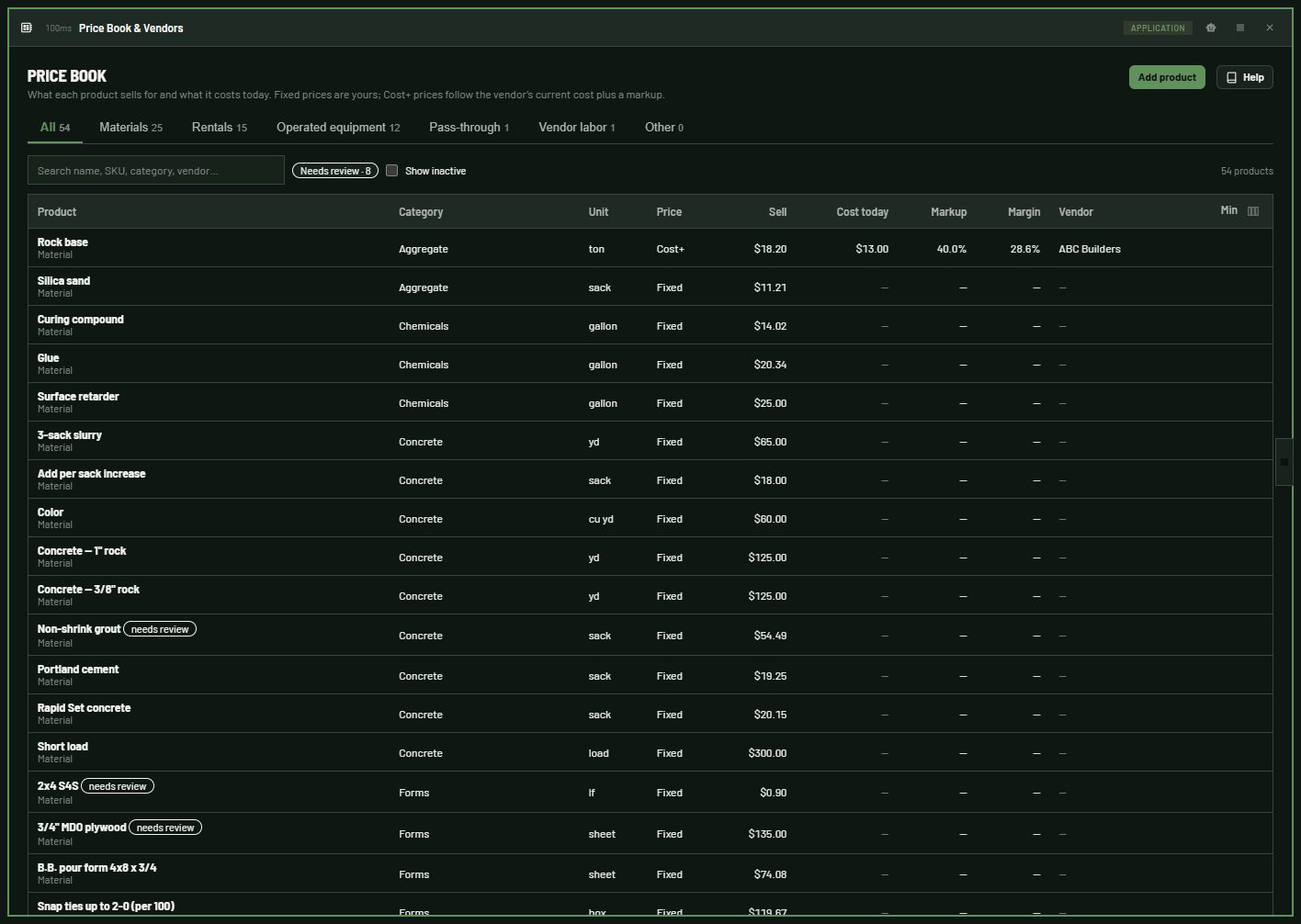
The Price Book is your list of products: the materials, rentals, equipment and services you sell or use on jobs. Vendors is the list of everyone you buy them from.
For each product, the Price Book knows what it costs you today, what you sell it for, and the margin. Estimates, field forms and job costs pick products from here, so everyone uses the same names and the same prices.
How a price is worked out
Which vendorPicked on the line→else the default vendor
if active -> else the latest active price -> else your own cost CostVendor's price+ fees→Cost + fees
MarkupUsual for the kindreplaced by→Vendor's Cost+replaced by→Product's markupreplaced by→Set by hand
on one line SellFixed price
you set it | Cost + fees + markup QuantityQuantity usedat least the minimum→Quantity billed→Line price
A fixed price wins over Cost+. Only a price set by hand on one line (for example on an estimate) changes it. The full rules are in How prices work.
Who uses it
| Who |
What they do here |
| Office / purchasing |
Keeps products, vendors, vendor prices and fees up to date |
| Estimators |
Pick products on estimates and see prices and margins |
| Crews |
Pick products by name on forms and dailies. They never see a dollar |
| Administrators |
Set the usual markups and decide who can see prices |
Where things are
| Place |
What's there |
| Left nav → Price Book |
Every product, with tabs by kind. Search, Needs review, Show inactive, Add product |
| Left nav → Vendors |
Suppliers, subcontractors and rental companies, with tabs by type. Search, Show inactive, Add vendor |
| Click a product |
The product opens in the side panel: its price tiles (Sell, Cost today, Markup, Margin), details, and its vendors with their prices and history |
| Click a vendor |
The vendor opens in the side panel: details, custom Cost+ markup, fees, and the products it carries |
| Help (top right of each page) |
This help |
| Module Settings → Price Book & Vendors → Preferences |
The usual Cost+ markup for each kind of product, and a sales tax % |
What you see depends on your access: without View prices the pages show names, kinds, units and vendors, but no prices. See Who can do what.
Ask the Price Book Assistant
The Price Book Assistant (in the AI chat) answers questions from your own Price Book and from this help: What does rock base cost from each supplier?, Which items are below cost?, What went up this month?, How do I add a fuel surcharge? With Manage it can also add and change products, vendors, fees and vendor prices, and it tells you exactly what it will change and waits for your yes. It has your access, no more: if you can't see prices, neither can it. See Ask the assistant.
Next: How-tos · How prices work · Who can do what
How-tos
Each how-to says who can do it. If a button is missing, you may not have that access; see Who can do what.
Find a product or a vendor
Who can do this: everyone.
- Left nav → Price Book (or Vendors).
- Click a tab to see one kind (Materials, Rentals, Operated equipment…) or one vendor type.
- Type in the search box. The Price Book searches the name, SKU, category, unit and vendor; Vendors searches the name, contact, phone, email and city.
- Tick Show inactive to include products or vendors that were switched off.
Expected result: the list narrows as you type. Click a row to open it in the side panel.
Add a product
Who can do this: people who manage the Price Book.
- Left nav → Price Book.
- Click Add product.
- Type the Name, then pick the Kind (Material, Equipment rental, Operated equipment, Pass-through, Vendor labor, Other), and type the Category and Unit (yd, ton, day, hr, ea).
- Pick the Price: Fixed price (type the Sell price) or Cost+ on the vendor's price.
- Click Add.
Expected result: the product opens in the side panel. Its Job cost code is filled in from the kind and materials are marked Taxable; change either under Details. Add a vendor price next (below), so the Price Book knows what it costs.
A product with the same name and kind as another is refused. The same name under another kind is fine (for example Skid steer as a rental and as operated equipment).
Edit a product's details
Who can do this: people who manage the Price Book.
- Open the product.
- Under Details, change what you need: Name, SKU, Kind, Category, Unit, Price (Fixed price or Cost+ vendor price), Sell price or Markup %, Minimum qty, Internal cost, Default vendor, Job cost code, Taxable, Active, Description.
- Click Save.
Expected result: the price tiles at the top update.
Record a vendor's price from a quote or invoice
Who can do this: people who manage the Price Book.
- Open the product (or the vendor).
- Click Add price on the product (or Add product price on the vendor).
- Pick the Vendor (or the Product). Inactive vendors aren't offered.
- Type the Cost per unit and the From date.
- Pick Where it came from: Quote, Invoice, Price list or Entered by hand.
- Optional: type the Vendor's item name or SKU and Notes (for example quote #1234, good through December).
- Optional: tick Make this the product's default vendor. It is ticked already when the product has no default vendor yet.
- Click Save price.
Expected result: the product's Cost today and Margin update. The vendor's earlier prices stay in History. A price dated in the future starts counting on that date. The first price a product gets makes that vendor its default vendor.
A price is never edited. To correct one, add the right price with the right From date; the latest one dated today or earlier is the current price.
See a vendor's price history
Who can do this: people who can see prices.
- Open the product.
- Under Vendors, click History (n) on the vendor's row.
Expected result: every price that vendor gave, newest first, with the date, cost, where it came from, their item name, notes and who entered it. The current price is the one not greyed out.
Compare vendors for a product
Who can do this: people who can see prices.
- Open the product.
- Read the Vendors table: each vendor's Cost, Fees, Cost + fees, Sell and Margin, priced from that vendor.
Expected result: the default vendor is first, marked default. A vendor with a custom Cost+ markup shows it under its name. To compare for a bigger quantity (minimums, per-line fees), ask the Price Book Assistant.
Choose which vendor a product is costed from
Who can do this: people who manage the Price Book.
- Open the product.
- Under Vendors, click Set as default on the vendor you buy from. Or, under Details, pick the Default vendor and click Save.
Expected result: the Price Book costs the product from that vendor. Pick — the one with the latest price — to have no default: the active vendor with the most recent price is then used. A vendor you make inactive is never chosen on its own, so its old prices stop costing new lines. On an estimate line you can still pick another vendor.
Add a vendor
Who can do this: people who manage the Price Book.
- Left nav → Vendors.
- Click Add vendor.
- Type the Name, pick the Type (Supplier, Subcontractor, Rental company), and add a Contact and Phone.
- Click Add.
Expected result: the vendor opens in the side panel. Add the Email, Address, Terms, Our account number (your account with them), Notes and an optional Custom Cost+ markup %, then click Save.
Make a vendor inactive
Who can do this: people who manage the Price Book.
- Open the vendor.
- Untick Active (next to Save), then click Save.
Expected result: the vendor is hidden from the list (tick Show inactive to see it) and isn't offered when picking a vendor. Its prices and history are kept. Products that had it as their default vendor are now costed from the active vendor with the latest price, and their price shows a warning until you pick a new default. Tick Active again to bring it back.
Make a product inactive
Who can do this: people who manage the Price Book.
- Open the product.
- Under Details, untick Active, then click Save.
Expected result: the product is hidden from the Price Book and from pickers on forms and estimates. Its prices and history are kept; tick Show inactive to find it again.
Add a vendor fee (fuel surcharge, delivery)
Who can do this: people who manage the Price Book.
- Open the vendor.
- Under Fees, click Add fee.
- Type a Name (for example Fuel surcharge).
- Pick How much: Percent of the cost, or Fixed amount (then pick Per: Line (once) or Unit).
- Type the Amount.
- Optional: tick the kinds it Applies to. None ticked means everything.
- Click Save fee.
Expected result: every product from this vendor now costs its price plus the fee. To change a fee, click Edit; to stop charging it for a while, untick Active. Remove deletes it; lines priced earlier keep what they were priced at.
Set a markup
Who can do this: administrators (for a kind) and people who manage the Price Book (a vendor or a product).
There are three places, and the most specific one wins:
- For a kind of product: Module Settings → Price Book & Vendors → Preferences (for example materials 25%).
- For one vendor: open the vendor, type its Custom Cost+ markup %, and click Save.
- For one product: open the product, choose Cost+ vendor price, type its Markup %, and click Save.
Expected result: the product's Sell tile says which rule priced it, for example Cost+ (the vendor's markup). Markups only apply to Cost+ products; a fixed price stays fixed.
Cost your own equipment
Who can do this: people who manage the Price Book.
For equipment you own, there is no vendor bill.
- Open the rental or operated-equipment product.
- Type its Internal cost per unit (what using it costs you per hour or day).
- Optional: type a Minimum qty (for example 4 for a 4-hour minimum).
- Click Save.
Expected result: when the product has no vendor price, it is costed at that rate and the margin shows. When it also has vendors, the panel shows As your own equipment: cost, sell, margin under the vendors, and a line marked Owned (on a field form) or with the vendor own is costed at this rate.
Check an item that needs review
Who can do this: people who manage the Price Book.
A needs review pill means a loaded price sheet disagreed with itself, or had no price.
- On the Price Book, click Needs review.
- Open the item. The notice shows both prices: what the sheet's item text says and what its price column says.
- Fix the Sell price if needed, then click Save.
- Click Mark reviewed.
Expected result: the pill is gone and the count goes down.
Add a subcontractor's labor as a product
Who can do this: people who manage the Price Book.
- Make sure the subcontractor is a vendor (type Subcontractor).
- In the Price Book, click Add product. Pick the kind Vendor labor and the unit hr (for example Site Supervisor).
- Choose Fixed price (what you bill per hour) or Cost+, then click Add.
- In the product panel, click Add price, pick the subcontractor, and type what they charge you per hour.
- Click Save price.
Expected result: the product shows the subcontractor's cost, your price and the margin.
Rearrange the table columns
Who can do this: everyone.
- On any table (the Price Book, Vendors, or a table in the side panel), drag a column header left or right. Or click the small Columns button at the right end of the header row.
- In Columns, move, hide or show columns. Reset puts them back.
Expected result: the table keeps your layout every time you open it, on any device. It is saved for you only.
Ask the assistant
Who can do this: everyone, with the access they already have.
- Open the AI chat and pick the Price Book Assistant.
- Ask in plain words (examples below).
- For a change, the assistant says exactly what it will do (the product or vendor, the old and new values, the date) and waits for your yes.
Things you can ask:
- What does rock base cost from each supplier for 20 tons?
- Which products have a margin under 15%? or Which items are priced below cost?
- What vendor prices changed in the last 30 days?
- Which items need review?
- Add a 4% fuel surcharge to Valley Rock Supply.
- Hill Aggregates quoted drain rock at $31 a ton from November 1.
- How do I make a vendor inactive?
Expected result: answers come from your Price Book, with the vendor and price date they apply to, and how-to answers name the help page they come from. Without View prices it answers with names only. Without Manage it can't change anything; it says who can.
How prices work
Products
Each product has a kind:
| Kind |
Examples |
Job cost code |
Taxable out of the box |
Usual Cost+ markup |
| Material |
concrete, rock, rebar |
MAT |
Yes |
25% |
| Equipment rental |
by the day, week or month |
EQR |
No |
15% |
| Operated equipment |
a machine with its operator, by the hour; often a minimum |
EQO |
No |
15% |
| Pass-through |
dump fees, permits |
OTH |
No |
10% |
| Vendor labor |
a subcontractor's supervisor or crew |
SUB |
No |
25% |
| Other |
anything else |
OTH |
No |
20% |
A product also has:
- a unit (yd, ton, day, hr, ea): vendor prices, internal cost and minimums are all per this unit;
- a job cost code: filled in from the kind when left blank (Accounting's codes), or any code you type;
- a taxable flag: materials yes, everything else no, until you change it;
- an optional SKU, category and description;
- an optional minimum qty (see Quantities and minimums);
- an optional internal cost per unit, for equipment you own;
- a default vendor, the one it is usually bought from;
- Active: set a product inactive to hide it from pickers without losing its history.
Two products can't have the same name and kind.
Your price: fixed or Cost+
- Fixed price. You charge this price whatever the vendor charges. The vendor's cost still shows, so you can see the margin. The Markup tile shows the markup that price works out to.
- Cost+. The vendor's current cost plus its fees, plus a markup.
A fixed price wins over Cost+. Only a price set by hand on one line (on an estimate, for example) changes it. Such a line shows Set by hand.
Which markup
The most specific markup wins:
- a markup (or a sell price) set by hand on one line;
- the product's own Markup %;
- the vendor's Custom Cost+ markup % (only when the line is costed from that vendor);
- the usual markup for the kind (Module Settings → Price Book & Vendors → Preferences). Out of the box: materials 25%, rentals 15%, operated equipment 15%, pass-through 10%, vendor labor 25%, other 20%.
The markup is applied to the cost including fees. The product's Sell tile names the rule: Fixed price, Cost+ (this product's markup), Cost+ (the vendor's markup), Cost+ (the usual markup for the kind) or Set by hand.
Vendors
A vendor is anyone you buy from. Each has a type:
| Type |
For |
| Supplier |
materials and supplies |
| Subcontractor |
a sub's labor or work (a project module can also pick subcontractors from here) |
| Rental company |
equipment rentals |
A vendor also keeps a contact, phone, email, address, terms (for example Net 30), our account number with them, notes, its fees and an optional custom Cost+ markup. Active: an inactive vendor keeps its prices and history but is never chosen on its own and isn't offered in pickers.
Vendor prices and history
A vendor price is what one vendor charges per unit of one product, from a date, with where it came from (Quote, Invoice, Price list, Entered by hand, or Read by AI), the vendor's own item name, notes and who entered it.
- Prices are never edited. A new price is a new row; the earlier ones stay in History.
- A vendor's current price is its latest price dated today or earlier. Two prices with the same date: the one entered last counts.
- A price dated in the future starts counting on that date.
- The first price a product gets makes that vendor its default vendor, unless it already has one.
Which vendor is used for a product's cost
- the vendor picked on the line;
- else the product's default vendor, unless that vendor is inactive (the line then warns);
- else the active vendor with the most recent price;
- else no vendor: the product's internal cost (for equipment you own).
A vendor picked on a line by hand is used even when inactive: someone chose it.
Fees
Fees are added to the vendor's cost on every line from that vendor:
- Percent of the cost (a fuel surcharge): a % of the vendor's cost for the quantity billed;
- Fixed amount per line (a delivery charge): charged once per line, spread over its units. It belongs on the vendor's invoice or an estimate line. Daily field postings leave it out, since the same rental shows up every day it is on site;
- Fixed amount per unit: the amount times the quantity billed.
A fee can apply to some kinds only (Applies to); none ticked means every kind. An inactive fee isn't charged. A product costed at your internal cost has no vendor fees. Cost today and Cost + fees include them.
Quantities and minimums
The quantity billed is the larger of the quantity used and the product's minimum qty: a 4-hour minimum bills 4 hours for 2. Unit prices are rounded to the cent; the line price is the unit price times the quantity billed. The cost with fees per unit keeps 4 decimals, so a per-line fee spread over the units adds back up exactly.
Margin is (line sell − line cost) ÷ line sell.
Items that need review
Loading a price sheet marks an item needs review when the sheet flagged it: its item text gave one price and its price column another (both are kept, and the price column becomes the sell price), or it had no price. Open the item, check the price and click Mark reviewed. See Check an item that needs review.
Warnings you may see
| Warning |
Meaning |
| No sell price |
A fixed-price product has no price yet |
| Fixed price below cost / Price below cost |
You would lose money on this item |
| No cost for this vendor |
The chosen vendor has no price for this product (yet, or only a future one) |
| No cost: no vendor price and no internal cost |
Nobody has priced it. Add a vendor price, or an internal cost for owned equipment |
| Cost+ needs a cost to price from |
A Cost+ product with no cost can't be priced |
| Default vendor … is inactive — costed from … |
The default vendor was made inactive; pick a new default |
| needs review (a pill) |
A loaded price sheet disagreed with itself, or had no price |
Used by other modules
Other modules pick products and vendors from here by name, and the Price Book prices their lines, so every module prices the same way. People who can't see prices still pick products by name; the dollars never reach their screen.
| Where |
What it does with the Price Book |
| Estimates (in a project module that uses the Price Book) |
The Materials, Rental, Operated equipment, Subs and Other tabs search the Price Book. Pick an item, the quantity and the vendor (only vendors that carry it; the default vendor is preselected); the price shows as you type, minimums included. A line keeps its price until Re-price… |
| Assigning a job (in a project module that uses the Price Book) |
Subcontractors are the vendors of type Subcontractor |
| Materials and Equipment rows on field forms (Accounting) |
Pick a product and a vendor (or Owned equipment). Each line is priced when the form is submitted and keeps that price. Fixed per-line fees are left out |
| Vendor invoices (Accounting) |
Each line can be a Price Book product; the cost is as invoiced and the bill is the Price Book sell (Cost+: the invoiced cost plus the product's markup) |
Without the Price Book, those places take typed items instead. Per-customer and per-project markups are planned; today they don't change a price. The Price Book's sales tax % is not applied anywhere yet (Accounting uses its own).
Dashboards
The Price Book can be charted on the platform Dashboards page (or ask the dashboard assistant).
| Dataset |
What you can chart |
Needs |
| Price Book products |
Products (active), inactive, needing review, without a default vendor; by category, kind, unit, cost code, default vendor, price mode and taxable. No prices |
View |
| Price Book prices and margins |
Average fixed sell price, average current unit cost, average internal cost (owned equipment), margin of fixed-price products, items priced below cost, the products' own Cost+ markups; same groupings |
View prices |
| Price Book vendors |
Vendors (active), inactive, products each supplies; by type, city, state, terms. No prices or markups |
View |
The current unit cost is worked out as on an estimate line (default vendor, else the vendor with the latest price, else the internal cost), without the vendor's fees.
Who can do what
Your administrator gives each role what it needs. Out of the box:
| Role |
Can |
| Everyone (Admin, Operator, Viewer) |
See products, their kinds, units, categories and the vendors by name (with their contacts and terms), to pick them on forms, dailies and estimates. No prices |
| People who can see prices (Admin out of the box) |
Also see vendor costs and price history, fees, sell prices, markups, margins and a vendor's custom Cost+ markup |
| People who manage the Price Book (Admin out of the box) |
Add and edit products, vendors, vendor prices and fees; set default vendors; mark items reviewed; load a price sheet |
| Administrators |
Set the usual markups for each kind (Module Settings) and decide which roles get the access above |
Without price access, the server leaves every price, cost, fee and markup out of what it sends. They are not just hidden on the screen. The same holds in other modules: a crew picking a Price Book item on a form never receives its price.
Managing without View prices is possible but awkward: you can add a price but not see the result. Give managers both.
To let an estimator or the office see prices, an administrator adds View prices to their role (System Settings → Users & Roles).
The Price Book Assistant
The assistant acts as you, with your access and no more:
| Your access |
The assistant can |
| View only |
Find products and vendors by name, list items that need review, answer how-to questions. No prices |
| View prices |
Also price a line for a quantity, vendor and date, compare vendors, find low margins and recent price changes |
| Manage |
Also add and change products and vendors, record vendor prices, add or change fees, set default vendors, make a vendor inactive, mark items reviewed. It asks before each change |
It never deletes anything: a vendor is made inactive, a fee is switched off.
Permission codes
| Code |
Plain words |
Default roles |
PRICEBOOK.VIEW |
See products and vendors by name; no prices |
Admin, Operator, Viewer |
PRICEBOOK.VIEW_PRICES |
See costs, sell prices, fees, markups and margins |
Admin |
PRICEBOOK.MANAGE |
Maintain products, vendors, prices and fees; load a price sheet |
Admin |
PRICEBOOK.MANAGE_SETTINGS |
Open Module Settings for the Price Book (tenant administrators can always) |
Admin |
Questions
Why can't I see any prices?
You can pick products by name, but your role doesn't include View prices. Ask your administrator. See Who can do what.
Why can't my crew see prices?
On purpose. Crews pick products by name on forms and dailies. The prices are worked out later, by people who can see them.
Why does this item show needs review?
A loaded price sheet disagreed with itself (for example, the item's text said one price and the price column another), or it had no price. Open the item, check the price, and click Mark reviewed. See the how-to.
I changed a vendor's price. Why didn't my estimate change?
An estimate line keeps the price it was added at. On the estimate, Re-price… shows what today's prices would change, and Apply updates them. Lines already posted from field forms keep their price too.
I set a markup but the sell price didn't move.
The product has a fixed price. Markups only apply to Cost+ products. Switch it to Cost+ vendor price if you want the markup to set the price. If it is Cost+, check whether the product has its own Markup %: that beats the vendor's and the usual one. See Which markup.
Why is the cost different from the vendor's price?
The vendor has fees (a fuel surcharge, a delivery charge). Cost today includes them; the product's Vendors table shows the price, the fees and Cost + fees separately.
Why is this product costed from a vendor I didn't expect?
The Price Book uses the product's default vendor; without one (or when it is inactive), the active vendor with the most recent price. Set the one you buy from with Set as default. See Which vendor is used.
A price I entered isn't used yet.
Its From date is in the future. It starts counting on that date.
I entered a wrong price. How do I fix it?
Prices aren't edited or deleted, so the history stays honest. Add the right price with the same From date: for the same date, the one entered last counts.
Can I delete a product or a vendor?
No. Untick Active instead: it disappears from lists and pickers, and its prices and history stay for the jobs that used it. See Make a vendor inactive.
Why does a rental's delivery fee not show on the daily?
A fixed amount per line fee is charged once, on the vendor's invoice or the estimate line. A rental shows up on every daily while it is on site, so field postings leave that fee out. Percent and per-unit fees still apply.
Why isn't this product in the picker?
It may be inactive, or the picker only shows certain kinds (for example, a Materials row shows materials and pass-through items). Typed items still work: type the name and the office adds the cost.
Why isn't this vendor in the list when I add a price?
It is inactive. Open it from Vendors (tick Show inactive) and tick Active to use it again.
Can the assistant see prices I can't?
No. The Price Book Assistant has exactly your access. Without View prices, it answers with names only; without Manage, it can't change anything.
My columns are in a different order from my colleague's.
Column layouts are per person. Drag the headers, or use Columns at the right of the header row; Reset goes back to the original. See Rearrange the table columns.
What's new
0.2.2 (2026-10-11)
- QA procedures. The module now ships how it is tested: who uses it (roles), the real jobs done with it end to end (workflows) and what each feature should do (tests). Data Visions testers run them before each version is approved, and they are published on the docs site. Nothing changes in the app.
0.2.1 (2026-10-11)
- Dashboards. The Price Book can be charted on the platform Dashboards page: products by category, kind and vendor, items that need review or have no vendor, vendors by type and the products each supplies, and, with View prices, average prices, costs, margins and items below cost. See Dashboards.
0.2.0 (2026-10-10)
- Price Book Assistant. Ask the AI chat about your Price Book: find products and vendors, price a line for a quantity, vendor and date, compare vendors, list items below cost or that need review, and see recent price changes. With Manage it adds and changes products, vendors, fees and vendor prices, after you confirm. It has exactly your access: no prices without View prices. See Ask the assistant.
- Help rewritten and extended: vendors, price history, fees, inactive vendors and products, how estimates and Accounting use the Price Book, warnings, and more questions. The assistant answers how-to questions from this help.
- Rearrange table columns: drag a header, or use Columns at the right of the header row. Your layout is saved for you. See Rearrange the table columns.
0.1.3 (2026-10-10)
- An inactive vendor is no longer chosen on its own: a product without a default vendor is costed from the active vendor with the latest price, and an inactive default vendor falls through to it (the line says so). Picking an inactive vendor on a line by hand still works.
- Inactive vendors are no longer offered in the Materials and Equipment pickers.
0.1.2 (2026-10-10)
- A fixed per-line fee spread over several units adds back up exactly (an estimate showed $290.01 for $290).
0.1.1 (2026-10-10)
- Help rewritten as how-tos, with a picture of how a price is worked out.
- Testing steps are shown to administrators only.
0.1.0 (2026-10-10)
- First version: products by kind, vendors, vendor prices with history, fees, fixed or Cost+ pricing, markups by kind, vendor and product, owned-equipment cost, and needs review for loaded price sheets.
- Other modules pick products and vendors by name; prices stay with people who may see them.